
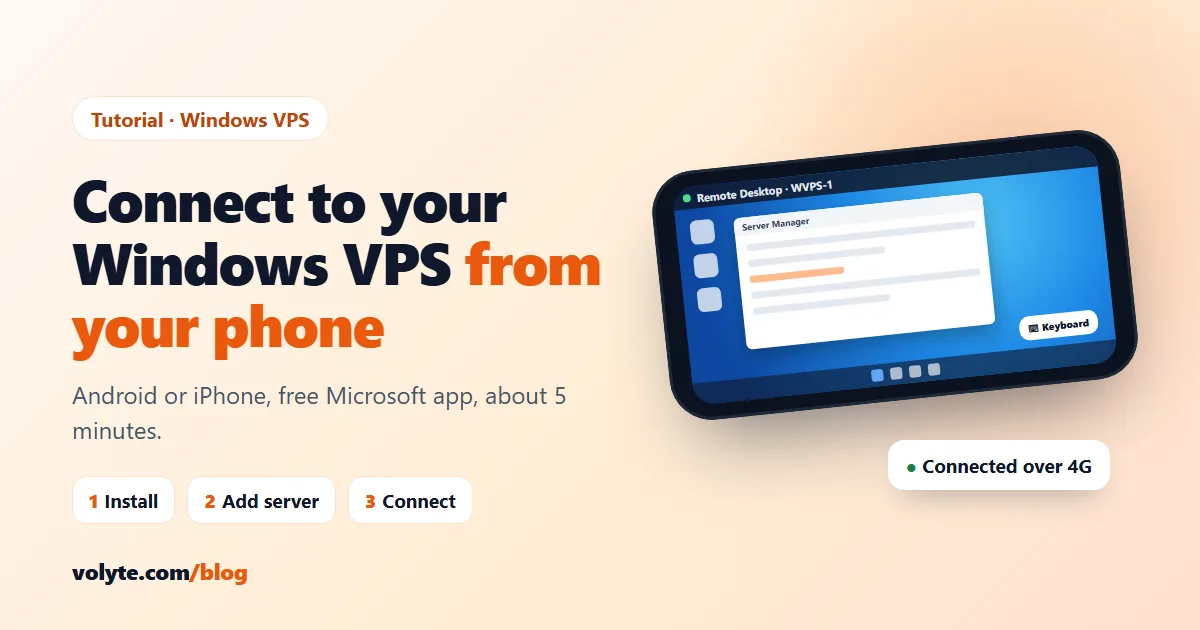
Your Windows VPS keeps running when your laptop is off — and you can reach it from your phone in a couple of taps. That's handy for checking a trading terminal, approving something in Tally, or restarting an app while you're away from your desk.
This guide works for Android and iPhone, uses Microsoft's free app, and takes about five minutes the first time.
What you need
- Your server's IP address — for example
203.0.113.25. - Username — usually
Administrator. - Password — from your welcome email.
- RDP port — the standard port is
3389. Many servers use a custom port for extra security (for example3390or49152). If your welcome email shows a port, you must use it — without it the app can’t connect.
All three are in the email you received when your server was ready, and in your client area under Services → your server.
Step 1: Install the free Microsoft app
Microsoft's Remote Desktop app is free on both phones:
- iPhone / iPad: open the App Store and install Windows App (the new name of Microsoft Remote Desktop).
- Android: open the Play Store and install Windows App or Remote Desktop — check the publisher is Microsoft Corporation.
Avoid third-party "RDP" apps that ask for payment or extra permissions — you don't need them.
Step 2: Add your server
- Open the app and tap +, then Add PC.
- In PC name, type your server's IP address.
- Standard port (3389): just the IP, like
203.0.113.25. - Custom port: add it after a colon, with no spaces, like
203.0.113.25:3390.
- Standard port (3389): just the IP, like
- Under User account, choose Add user account and enter
Administratorand your password. - Optional: give it a friendly name such as "Office server", then tap Save.
Step 3: Connect
- Tap the server tile you just created.
- The first time, the app may say it can't verify the identity of the remote PC. That's normal for a new server — tick Don't ask again and tap Connect.
- Your Windows desktop opens. Turn your phone sideways for a bigger view.
Using Windows on a small screen
- Mouse or touch: in the session bar at the top, switch between mouse pointer mode (precise clicks, best for small buttons) and touch mode (tap directly).
- Keyboard: tap the keyboard icon in the session bar to type.
- Zoom: pinch with two fingers to zoom into small text.
- Right-click: in mouse mode, tap with two fingers.
Leave apps running: disconnect, don't sign out
When you're done, close the session from the app (the ✕ or Disconnect in the session bar). Your programs keep running on the server.
Don't choose Sign out from the Windows Start menu unless you want everything closed — signing out stops your open apps. This matters if you run trading terminals or Expert Advisors 24×7 on a Forex VPS.
If it doesn't connect
| What you see | What to do |
|---|---|
| "We couldn't connect to the remote PC" | Check the IP address and the port — if your server uses a custom port, the PC name must be IP:port. In the client area, make sure your server shows Running — if not, press Start. Some office or public Wi-Fi blocks Remote Desktop; try mobile data. |
| "Your credentials did not work" | Retype the password carefully (copy-paste can add a space). The username is Administrator unless you created another user. |
| It connects but feels slow | Switch to Wi-Fi or a stronger 4G/5G signal, and close video or animated apps on the server. Remote Desktop only sends the screen, so normal mobile data is usually enough. |
| Another person gets logged out | You and a colleague are using the same Windows user. Give each person their own Windows user — handy for a Tally on Cloud team. |
Keep it secure
- Change the
Administratorpassword after your first login, and don't share it on WhatsApp or email. - Give staff their own Windows users instead of sharing the admin account.
- Lock your phone with a PIN or fingerprint — the app remembers your login.
Still stuck? Our team is on chat, ticket and phone 24/7 in Hindi and English — send us the exact error and we'll get you connected. Don't have a server yet? See our Windows VPS plans.