
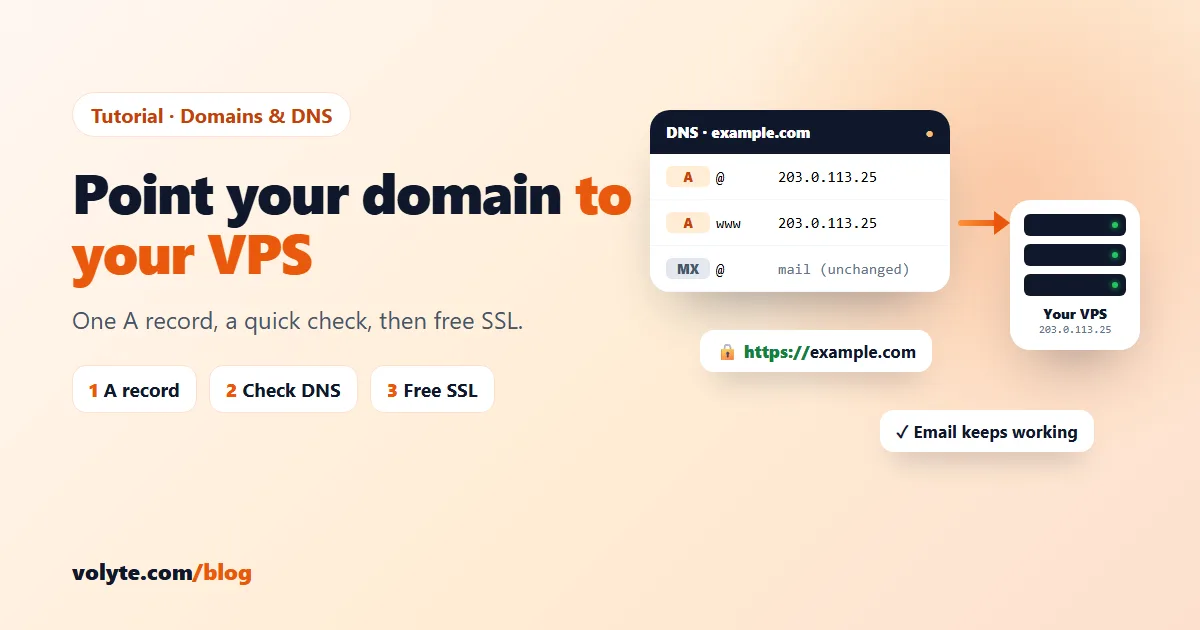
You have a VPS and a domain name. To make example.com open your website, you add one small DNS record that says “this domain lives at this server's IP address”. It takes about 5 minutes to set up, and usually works within an hour.
This guide works wherever your domain is registered — with us, GoDaddy, Hostinger, Namecheap or anyone else — and for Linux and Windows VPS.
What you need
- Your VPS IP address — in your welcome email and in your client area. We'll use the example
203.0.113.25. - A login to wherever your domain's DNS is managed — usually your domain registrar. If you use Cloudflare, make the changes in Cloudflare instead.
- Your website ready on the VPS — or set it up after Step 3 while DNS updates.
Step 1: Find where your DNS is managed
Your DNS is managed wherever your domain's nameservers point. Open your registrar's domain page and look at “Nameservers”:
- If they are the registrar's own (for example
ns1.registrar.com), edit DNS at the registrar. - If they say something like
xxx.ns.cloudflare.com, edit DNS in your Cloudflare account.
Domain registered with Volyte? Go to Client area → Domains → My Domains → Manage → DNS Management.
Step 2: Add the A records
An A record connects a name to an IPv4 address. Add (or edit) these two records:
| Type | Name / Host | Value / Points to | TTL |
|---|---|---|---|
| A | @ (the domain itself) | 203.0.113.25 | Auto or 1 hour |
| A | www | 203.0.113.25 | Auto or 1 hour |
- Some panels want the full name instead of
@— typeexample.com. - Instead of the second A record, you can use a CNAME: name
www, valueexample.com. Either works. - Delete any old A records for
@andwwwthat point somewhere else (such as a “parked” page). Two different A records for the same name make visitors land on either server at random. - If there is an AAAA record (IPv6) pointing to your old host, delete it too — or change it to your VPS's IPv6 address if it has one.
Don't touch your MX records. They decide where your email goes. Changing A records moves your website only — your email keeps working where it is.
Step 3: Check that DNS has updated
Changes usually show within 5–60 minutes. Sometimes it takes a few hours, because internet providers remember (cache) the old address until the old TTL runs out.
On Windows, open Command Prompt and type:
nslookup example.com 8.8.8.8On Mac or Linux:
dig +short example.com @8.8.8.8When it shows your VPS IP (203.0.113.25), DNS is ready. You can also check from many countries at once with a free online “DNS checker”.
Step 4: Tell your web server about the domain
DNS sends visitors to your server — now the server must know which website to show for that domain.
- cPanel / Plesk: add the domain in the panel (cPanel: Domains → Create a New Domain; Plesk: Websites & Domains → Add Domain). Done — skip to Step 5.
- Nginx: put both names in your site's
server_nameline, then reload:server_name example.com www.example.com;sudo nginx -t && sudo systemctl reload nginx - Apache: set
ServerName example.comandServerAlias www.example.comin your virtual host, thensudo systemctl reload apache2. - Windows VPS (IIS): in IIS Manager, open your site → Bindings → add
example.comandwww.example.comon port 80.
Make sure ports 80 and 443 are open in your server's firewall.
Step 5: Add a free SSL certificate (HTTPS)
Once the domain opens your site, add HTTPS so browsers show the padlock. It's free with Let's Encrypt.
- cPanel / Plesk: AutoSSL (cPanel) or the Let's Encrypt extension (Plesk) does it automatically, usually within minutes.
- Nginx on Ubuntu / Debian:
Certbot sets up HTTPS and renews the certificate automatically.sudo apt install certbot python3-certbot-nginx sudo certbot --nginx -d example.com -d www.example.com - Windows (IIS): use the free win-acme tool, which adds and renews Let's Encrypt certificates for IIS.
SSL only works after DNS points to your VPS — if Certbot says the domain can't be verified, wait a little and try again.
If it doesn't work
| What you see | What to do |
|---|---|
| The old website still shows | DNS hasn't updated for you yet. Check with nslookup example.com 8.8.8.8. If that shows the new IP, clear your browser cache or try mobile data. |
| Sometimes old site, sometimes new | There are two A (or AAAA) records for the same name. Delete the one that points to the old server. |
| “This site can't be reached” | DNS is fine but the server isn't answering: check the web server is running and ports 80/443 are open in the firewall. |
| The server's default page appears | Your web server doesn't know the domain yet — repeat Step 4. |
| Email stopped working | An MX record was changed or deleted. Put back the MX records your email provider gave you. |
Stuck? Send us your domain name on chat or ticket and we'll check your DNS for you — 24/7, in Hindi and English. Need a server first? See our Linux VPS and Windows VPS plans, or register a domain.