
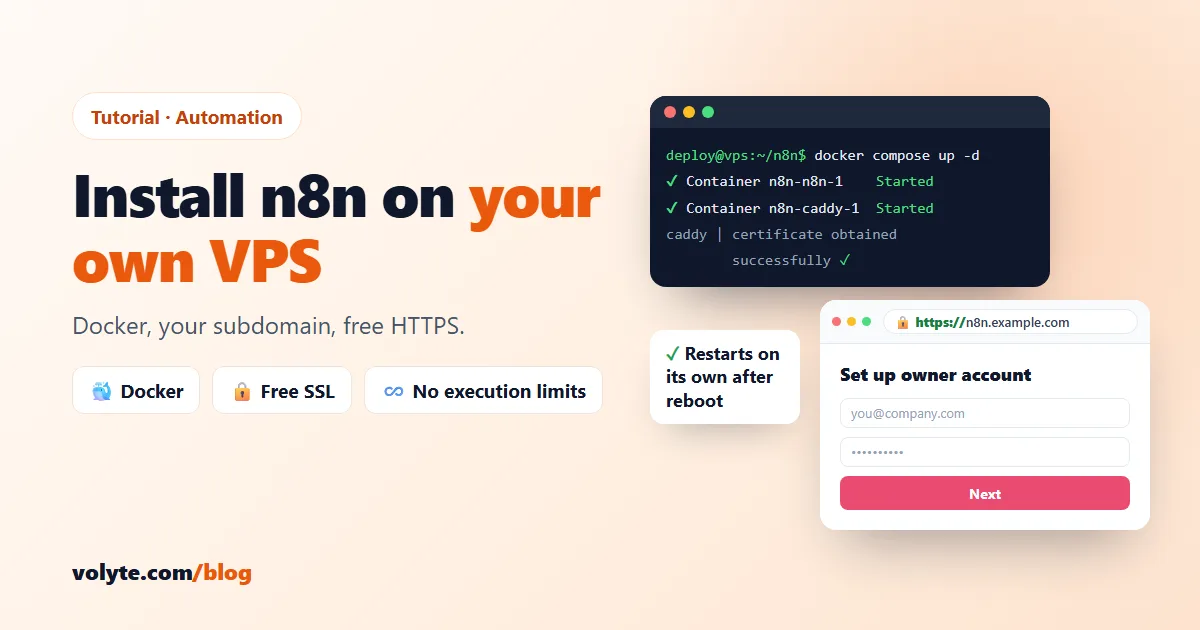
n8n is a workflow automation tool, like Zapier or Make, that you can run on your own server. Self-hosting it means no limit on workflow executions — you pay for the server, not per run — and your API keys and data stay on a machine you control.
This guide sets up n8n the clean way: in Docker, behind Caddy, a small web server that gets a free HTTPS certificate for you automatically and renews it on its own. It takes about 15 minutes.
What you need
- A Linux VPS with Ubuntu 24.04 (Debian 12 works the same). 2 GB RAM is enough to try n8n; for real business workflows choose 4 GB or more.
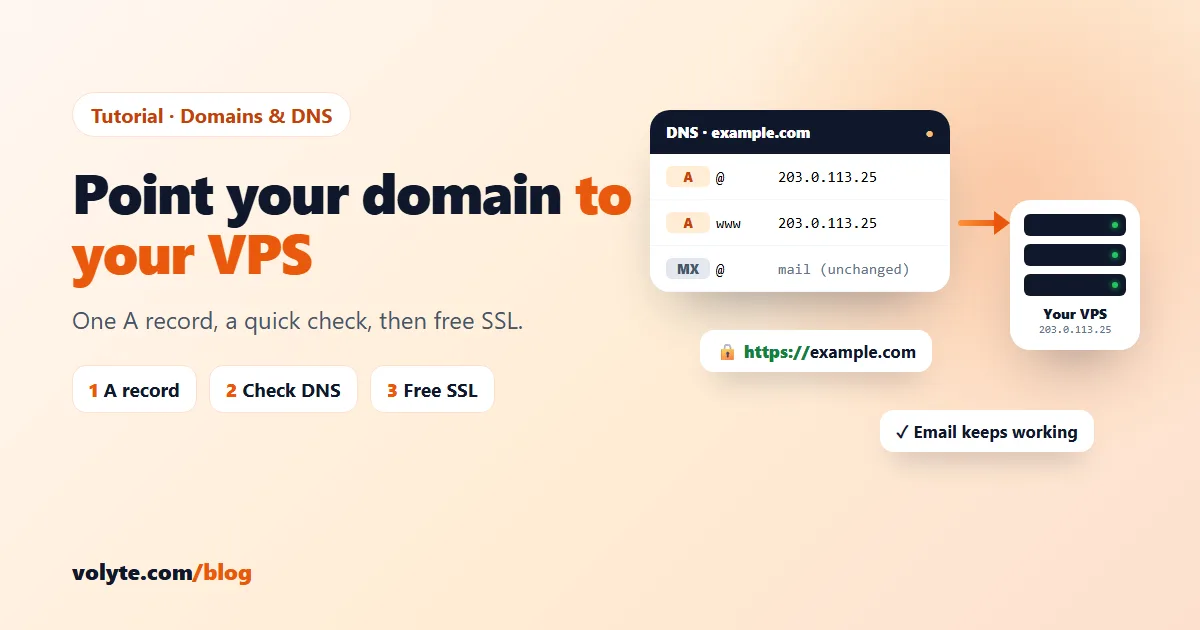
- A subdomain for n8n, for example
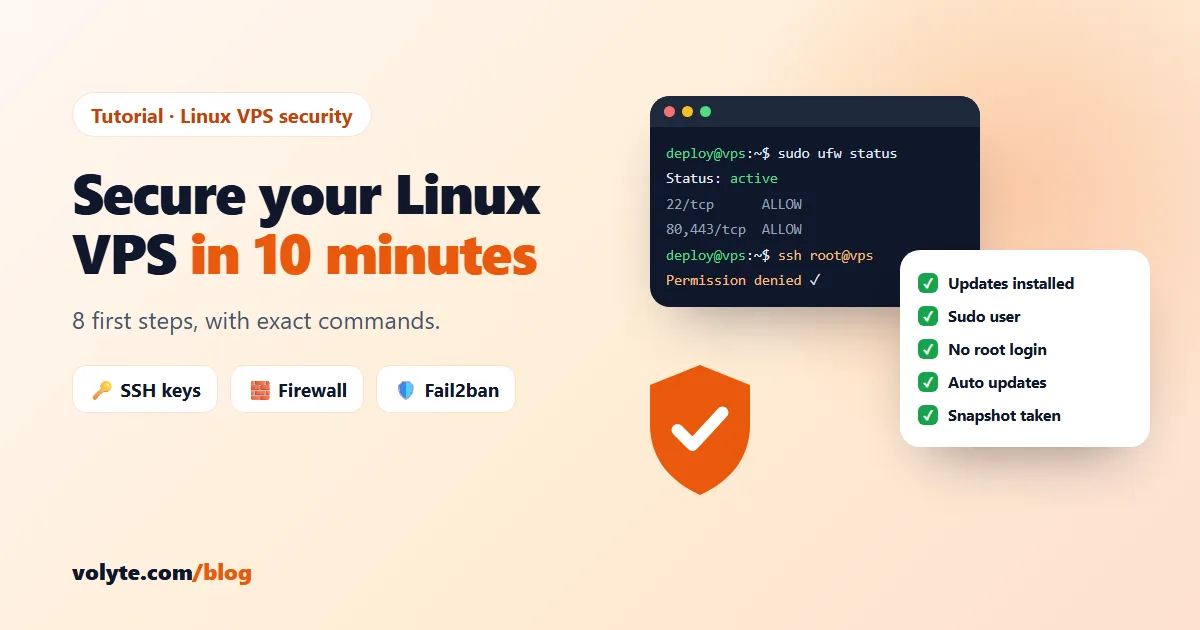
n8n.example.com, with an A record pointing to your server's IP. Not sure how? Follow how to point your domain to your VPS first — the subdomain must already point to the server, or the certificate can't be issued. - A secured server. If it's brand new, do the 8 first security steps before anything else.
In the commands below, replace n8n.example.com with your own subdomain.
1. Install Docker
Docker's official install script adds Docker and the Compose plugin in one go:
curl -fsSL https://get.docker.com | sudo sh
sudo usermod -aG docker $USER
Log out and log back in so the second line takes effect, then check it works:
docker --version
docker compose version
2. Check the subdomain points to the server
dig +short n8n.example.comIt should print your server's IP. If it prints nothing or an old IP, wait a few minutes for DNS to update before going on.
3. Open ports 80 and 443
Caddy needs both: port 80 to prove you own the domain, port 443 for HTTPS.
sudo ufw allow 80,443/tcp
sudo ufw status
Notice that we will not open n8n's own port, 5678. n8n is only reachable through Caddy, over HTTPS.
4. Create the n8n folder and settings
mkdir ~/n8n && cd ~/n8n
nano docker-compose.yml
Paste this in, change the two lines with n8n.example.com, and set your time zone if you are not in India:
services:
  n8n:
    image: docker.n8n.io/n8nio/n8n
    restart: unless-stopped
    environment:
      - N8N_HOST=n8n.example.com
      - N8N_PROTOCOL=https
      - N8N_PORT=5678
      - WEBHOOK_URL=https://n8n.example.com/
      - N8N_PROXY_HOPS=1
      - GENERIC_TIMEZONE=Asia/Kolkata
      - TZ=Asia/Kolkata
      - NODE_ENV=production
    volumes:
      - n8n_data:/home/node/.n8n

  caddy:
    image: caddy:2
    restart: unless-stopped
    ports:
      - "80:80"
      - "443:443"
    volumes:
      - ./Caddyfile:/etc/caddy/Caddyfile:ro
      - caddy_data:/data
      - caddy_config:/config

volumes:
  n8n_data:
  caddy_data:
  caddy_config:
Save with Ctrl+O, Enter, then Ctrl+X. Now create the Caddy settings — just three lines:
nano Caddyfilen8n.example.com {
reverse_proxy n8n:5678
}What the important settings do:
WEBHOOK_URL— the address other apps use to call your workflows. Without it, n8n shows webhook links withlocalhost:5678, which nothing outside can reach.N8N_PROXY_HOPS=1— tells n8n it sits behind one proxy (Caddy), so it sees the visitor's real IP.n8n_data— a Docker volume that keeps your workflows, credentials and encryption key safe when the container is updated or recreated.
5. Start n8n
docker compose up -d
docker compose logs -f caddy
Within a minute you should see a line saying the certificate was obtained successfully. Press Ctrl+C to leave the log. Both containers should show as running:
docker compose psBecause of restart: unless-stopped, n8n starts again on its own after a reboot.
6. Create your owner account
Open https://n8n.example.com in your browser. You'll see the padlock and n8n's setup screen. Create the owner account straight away — until you do, anyone who finds the address could claim it. Use a strong password, and turn on two-factor authentication under Settings → Personal.
Test it with a simple workflow: add a Schedule Trigger and a Gmail or Telegram node, run it once, and you're automating.
7. Update n8n
n8n releases new versions often. Take a snapshot of your VPS from the client area first, then:
cd ~/n8n
docker compose pull
docker compose up -d
docker image prune -f
Your workflows stay in the n8n_data volume, so nothing is lost. Before a big version jump, read n8n's release notes for breaking changes — and if anything misbehaves, roll back to the snapshot in minutes.
8. Back up your workflows
Turn on Auto Backup for the server. For an extra copy of n8n's data you can download anywhere, run:
docker run --rm -v n8n_n8n_data:/data -v ~/backups:/backup alpine tar czf /backup/n8n-$(date +%F).tar.gz -C /data .The volume name is the folder name plus _n8n_data; check yours with docker volume ls. This archive includes n8n's encryption key — without it, saved credentials can't be read on a new server — so keep the file somewhere safe and private.
Common problems
| Problem | Usual fix |
|---|---|
| No certificate, browser shows an error | The subdomain doesn't point to the server yet, or port 80 is closed. Check dig, ufw status and docker compose logs caddy. |
Webhook URLs show localhost:5678 | WEBHOOK_URL is missing or misspelled. Fix it and run docker compose up -d. |
| Times in workflows are off by 5½ hours | Set GENERIC_TIMEZONE and TZ to Asia/Kolkata. |
| n8n becomes slow or restarts | The server is out of memory — check with free -h. Heavy workflows and AI agents need 4–8 GB RAM. |
Rather skip the setup?
Our n8n VPS comes with n8n pre-installed: we set up Docker, your subdomain and SSL, so you just log in and build. Unlimited workflows and executions for one flat monthly price, with the same price at renewal — and real people to help, 24/7 in Hindi and English.