
A new server with a public IP gets its first login attempts from bots within minutes. The good news: a handful of steps stop almost all of them. Do these right after your VPS is ready — it takes about 10 minutes.
Commands are for Ubuntu and Debian, with the AlmaLinux / Rocky Linux version where it differs. Log in as root with the details from your welcome email.
Golden rule: when you change SSH settings, keep your current session open and test the new login in a second window. If something is wrong, you can still fix it from the first one.
1. Update everything
apt update && apt upgrade -yAlmaLinux / Rocky: dnf upgrade -y. Reboot if the kernel was updated: reboot.
2. Create your own user with sudo
Working as root all the time is risky — one wrong command can damage the system. Create a normal user (replace deploy with your name):
adduser deploy
usermod -aG sudo deploy
Debian says sudo: command not found? Install it first: apt install sudo -y. AlmaLinux / Rocky: adduser deploy && passwd deploy && usermod -aG wheel deploy.
3. Log in with an SSH key instead of a password
A key is far harder to guess than any password. On your own computer (Windows PowerShell, Mac or Linux terminal), create a key once:
ssh-keygen -t ed25519Press Enter to accept the defaults (adding a passphrase is a good idea). Then copy it to the server — on Mac / Linux:
ssh-copy-id deploy@203.0.113.25On Windows PowerShell:
type $env:USERPROFILE\.ssh\id_ed25519.pub | ssh deploy@203.0.113.25 "mkdir -p ~/.ssh && chmod 700 ~/.ssh && cat >> ~/.ssh/authorized_keys && chmod 600 ~/.ssh/authorized_keys"Now open a new window and check you can log in without a password: ssh deploy@203.0.113.25.
4. Turn off root login and password login
Only after the key login works, edit the SSH settings:
sudo nano /etc/ssh/sshd_configSet these two lines (remove the # at the start if there is one):
PermitRootLogin no
PasswordAuthentication no
On Ubuntu, also check the files in /etc/ssh/sshd_config.d/ — a file such as 50-cloud-init.conf can switch PasswordAuthentication yes back on. Change it to no there too. Then test and restart SSH:
sudo sshd -t && sudo systemctl restart sshAlmaLinux / Rocky: the service is called sshd — sudo systemctl restart sshd. Test the login again in a new window before closing the old one.
Optional: moving SSH from port 22 to another port (for example 2222) doesn't make it unbreakable, but it cuts automated login attempts dramatically. If you do, open the new port in the firewall (Step 5) before restarting SSH. On Ubuntu 24.04, also run sudo systemctl daemon-reload && sudo systemctl restart ssh.socket.
5. Switch on the firewall
Allow only what you use — SSH, and web traffic if you host websites:
sudo ufw allow OpenSSH
sudo ufw allow 80,443/tcp
sudo ufw enable
sudo ufw status
Changed the SSH port? Use sudo ufw allow 2222/tcp instead of OpenSSH. AlmaLinux / Rocky use firewalld, which is on by default and already allows SSH:
sudo firewall-cmd --permanent --add-service=http --add-service=https
sudo firewall-cmd --reload
6. Block repeated login attempts with Fail2ban
sudo apt install fail2ban -y
sudo systemctl enable --now fail2ban
sudo fail2ban-client status sshd
Fail2ban bans an IP for a while after several failed logins. On Ubuntu the SSH protection is on out of the box. On Debian 12, if Fail2ban doesn't start, create /etc/fail2ban/jail.local with these lines and restart it — Debian 12 keeps logs in the system journal instead of auth.log:
[sshd]
backend = systemd
AlmaLinux / Rocky: install it from EPEL (sudo dnf install epel-release -y && sudo dnf install fail2ban -y) and turn on the sshd jail in /etc/fail2ban/jail.local.
7. Install security updates automatically
sudo apt install unattended-upgrades -y
sudo dpkg-reconfigure -plow unattended-upgrades
Choose Yes. Security fixes now install by themselves every day. AlmaLinux / Rocky:
sudo dnf install dnf-automatic -y
sudo systemctl enable --now dnf-automatic.timer
(Set apply_updates = yes in /etc/dnf/automatic.conf so updates are installed, not just downloaded.)
8. Take a snapshot and set up backups
Security also means being able to recover. Now that the server is clean and configured, take a snapshot from your client area — if anything goes wrong later, you can roll back in minutes. Turn on Auto Backup too, so you always have a recent copy kept off the server.
Quick check: what is listening?
See which services accept connections from the internet:
sudo ss -tulpnAnything you don't recognise or don't need (an old database open to the world, a test app) — stop it, or allow it only from your own IP.
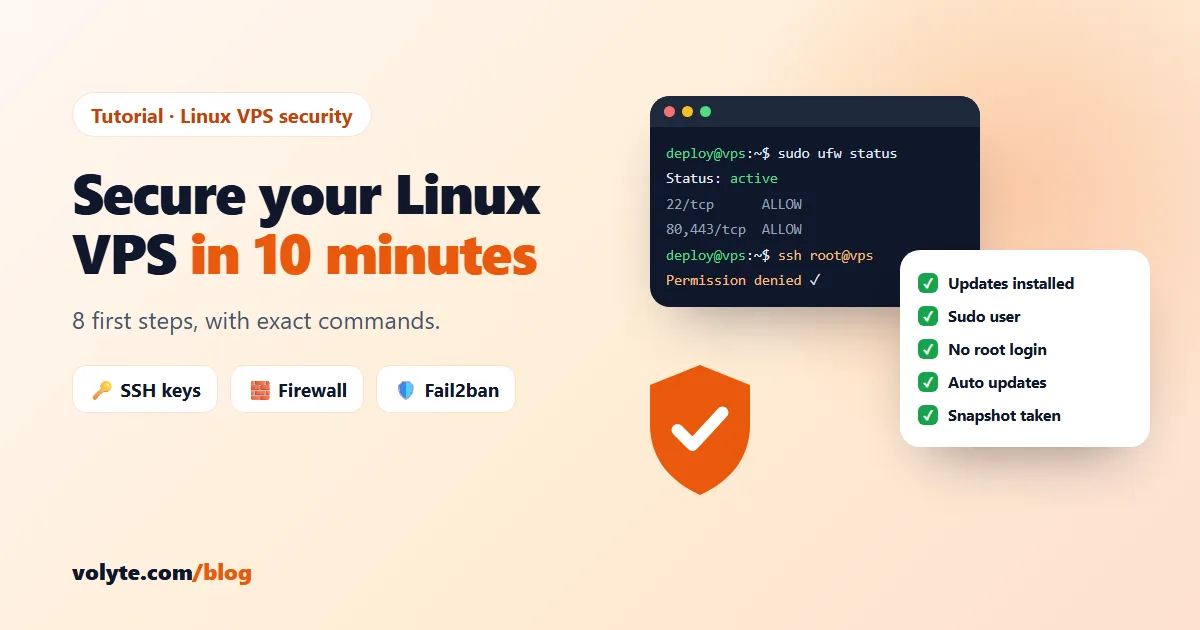
Your checklist
| Step | Done when… |
|---|---|
| Updates | apt upgrade shows nothing left to install |
| Own sudo user | You can run sudo whoami and it prints root |
| SSH key | You log in without typing the server password |
| No root / password login | ssh root@your-ip is refused |
| Firewall | ufw status shows active with only the ports you need |
| Fail2ban | fail2ban-client status sshd shows the jail running |
| Auto updates | unattended-upgrades (or dnf-automatic) is enabled |
| Snapshot + backups | A snapshot exists and Auto Backup is on |
Locked yourself out? Don't panic — contact us on chat or ticket and our team will help through the server console, 24/7 in Hindi and English. Prefer not to do this yourself? Choose a Linux VPS and ask for help setting it up, or read how to point your domain to your VPS.