
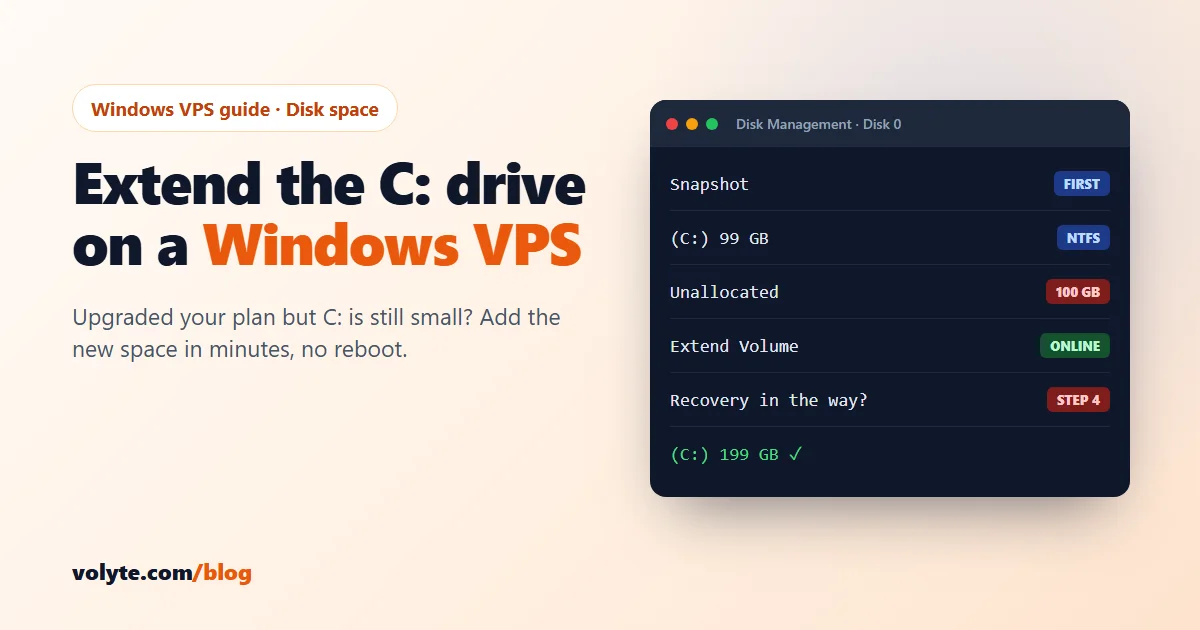
You upgraded your Windows VPS to a bigger plan, but This PC still shows the old size for the C: drive. Nothing is wrong: the server's disk did get bigger, but Windows doesn't hand the new space to C: by itself. The extra space sits next to C: as "Unallocated" until you extend the drive.
In this guide you'll extend C: in a few clicks with Disk Management, or with two lines of PowerShell, and fix the most common problem: Extend Volume is greyed out because a Recovery partition sits in the way. Extending C: works while the server is running. No reboot needed, and your files and programs stay where they are. The steps work on Windows Server 2019, 2022 and 2025.
Before you start: take a snapshot from your client area. Extending a drive is safe, but if you need to delete a Recovery partition (step 4), one wrong partition number could cost you data. With a snapshot you can always go back. Prefer not to do it yourself? Our team can extend the drive for you; just open a ticket.
1. Check that the new space is there
Right-click the Start button and choose Disk Management (or press Win + R, type diskmgmt.msc and press Enter). At the bottom you'll see Disk 0 with its partitions. After an upgrade it usually looks like this:
| Partition | Size (example) | What it is |
|---|---|---|
| EFI System / System Reserved | 100–500 MB | Boot files. Leave it alone. |
| (C:) | 99 GB | Windows, your programs and data |
| Unallocated (black bar) | 100 GB | The new space from your upgrade |
Don't see the unallocated space? Click Action → Rescan Disks. If it still isn't there, the upgrade may not have finished yet; check with our team.
2. Extend C: with Disk Management
- Right-click the C: partition and choose Extend Volume.
- The Extend Volume Wizard opens. Click Next.
- Windows selects all the unallocated space by default. Keep it and click Next, then Finish.
A few seconds later C: shows the full new size and the black "Unallocated" bar is gone. Programs keep running while this happens.
3. Or do it with PowerShell
Open PowerShell as Administrator. First check how big C: can get:
Get-PartitionSupportedSize -DriveLetter CSizeMax is the largest size C: can grow to, in bytes. If it is larger than C:'s current size, extend C: to that maximum:
$max = (Get-PartitionSupportedSize -DriveLetter C).SizeMax
Resize-Partition -DriveLetter C -Size $max
If SizeMax is the same as the current size, Windows can't see free space directly after C:. Run Update-HostStorageCache to rescan, then try again. If it still doesn't grow, the cause is usually a Recovery partition: see the next step.
4. "Extend Volume" is greyed out: the Recovery partition
Windows can only extend a drive into unallocated space that comes directly after it. On some servers there is a small Recovery partition (about 500 MB to 1 GB) between C: and the new space:
| (C:) 99 GB | Recovery 600 MB | Unallocated 100 GB |
|---|
Now Extend Volume is greyed out. The Recovery partition holds the Windows Recovery Environment (WinRE), used to repair Windows when it won't start. On a VPS you can always restore a snapshot instead, so it's safe to remove it, extend C:, and turn recovery back on afterwards if you want it.
a) Check where recovery lives and turn it off. In PowerShell as Administrator:
reagentc /info
reagentc /disable
/info shows Windows RE status and its location, such as harddisk0\partition4. Note the partition number. /disable moves the recovery files onto C: so nothing is lost.
b) Delete the Recovery partition with diskpart. Read each list carefully before you type delete:
diskpart
list disk
select disk 0
list partition
select partition 4
detail partition
delete partition override
exit
Before delete, detail partition must show Type: de94bba4-06d1-4d40-a16a-bfd50179d6ac (Recovery) on GPT disks, or Type: 27 on older MBR disks, and a size of about 500 MB–1 GB. If it says anything else, or shows a drive letter, stop: you have the wrong partition. Type exit and check again.
c) Extend C: with Disk Management or PowerShell, exactly as in step 2 or 3. It works now, because the unallocated space comes directly after C:.
d) Turn recovery back on (optional).
reagentc /enable
reagentc /info
WinRE now lives in a folder on C: instead of its own partition. If /enable reports an error, you can leave recovery off: snapshots give you a better way back on a VPS.
5. Check the new size
Open This PC, or run:
Get-Volume -DriveLetter C | Select-Object DriveLetter, @{n='SizeGB';e={[math]::Round($_.Size/1GB)}}, @{n='FreeGB';e={[math]::Round($_.SizeRemaining/1GB)}}C: should now show the size of your new plan, minus a few hundred MB for the boot partition. Once everything works, you can delete the snapshot you took at the start, or keep it for a few days to be safe.
Your checklist
- ☐ Snapshot taken in the client area
- ☐ Disk Management shows new "Unallocated" space after the upgrade
- ☐ C: extended (Disk Management → Extend Volume, or
Resize-Partition) - ☐ If greyed out:
reagentc /disable, Recovery partition checked withdetail partition, deleted, C: extended - ☐ Recovery turned back on, or left off on purpose
- ☐ New size checked in This PC
Running out of space often? Old logs and backups are the usual cause: see how to back up a Windows VPS automatically (it cleans up old copies for you), and how much RAM and CPU your VPS needs when you're picking a size. A Volyte Windows VPS comes with the Windows Server licence included, NVMe storage, snapshots, and upgrades that keep your data. Need lots of space for files and archives? Look at a Windows storage VPS. Stuck at any step? Our team helps 24/7 on chat, ticket or phone, in Hindi and English.
Frequently asked questions
Why doesn't my C: drive get bigger after upgrading my VPS?
The upgrade makes the virtual disk bigger, but Windows doesn't add the new space to any drive by itself. It appears as Unallocated space next to C: in Disk Management. Right-click C:, choose Extend Volume and accept the defaults to add it.
Do I need to restart the server to extend the C: drive?
No. Windows can extend the C: drive while the server is running, and your programs and files are not affected. Taking a snapshot first is still a good idea, especially if you need to remove a Recovery partition.
Why is Extend Volume greyed out?
Windows can only extend a drive into unallocated space directly after it. Usually a small Recovery partition sits between C: and the new space. Disable recovery with reagentc /disable, delete the Recovery partition with diskpart, extend C:, then turn recovery back on with reagentc /enable if you want it.
How do I extend the C: drive with PowerShell?
Run PowerShell as Administrator, get the maximum size with (Get-PartitionSupportedSize -DriveLetter C).SizeMax, and pass it to Resize-Partition -DriveLetter C -Size. If the maximum equals the current size, rescan with Update-HostStorageCache or check for a Recovery partition after C:.
Is it safe to delete the Recovery partition on a Windows VPS?
Yes, if you first run reagentc /disable and confirm with detail partition in diskpart that you selected the Recovery partition. The recovery files move to C:, and on a VPS a snapshot is a faster way back than Windows recovery. Always take a snapshot before you start.