
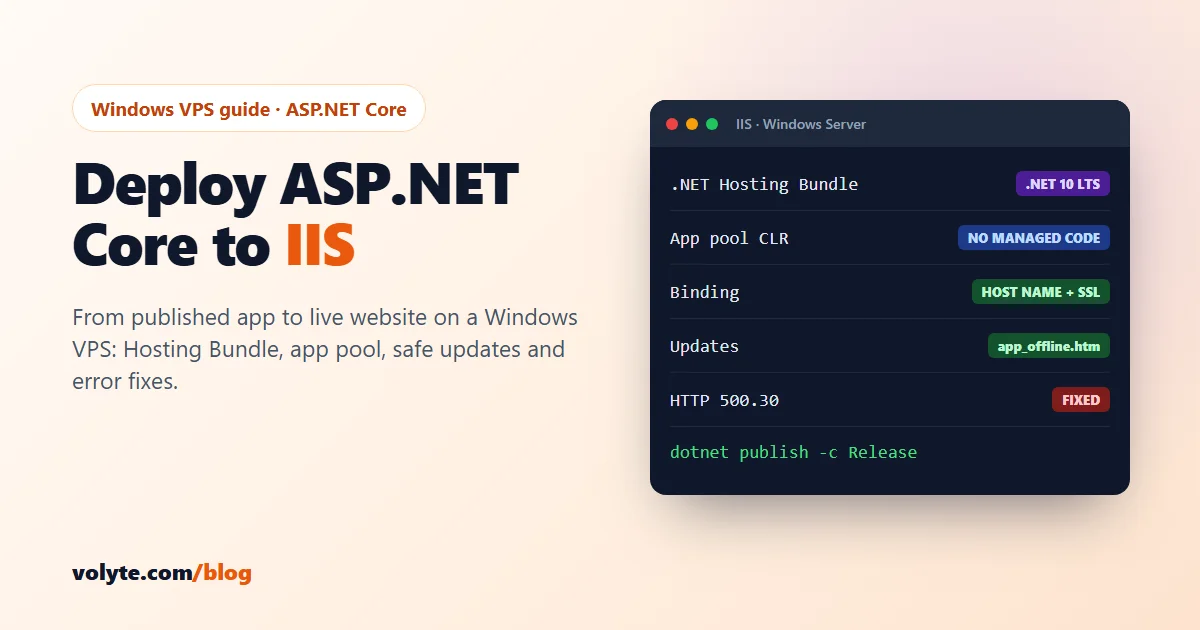
Your developer has built an ASP.NET Core app: a web portal, an API, a Blazor dashboard. Now it needs a home on the internet. On a Windows VPS, the natural place is IIS, the web server built into Windows Server. It starts your app automatically, restarts it if it crashes, and handles your domain and SSL certificate.
This guide takes you from a published app to a live website: install the .NET Hosting Bundle, create the site and app pool, copy the files, set permissions, update the app safely later, and fix the errors people hit most often. The steps work on Windows Server 2019, 2022 and 2025. Run commands in PowerShell as Administrator.
Before you start: take a snapshot from your client area. IIS must already be installed, and your domain should point to the server. If not, follow how to host a website on a Windows VPS with IIS first (steps 1 to 5), then come back here.
1. Check which .NET version your app uses
Open your project's .csproj file and look for TargetFramework:
<TargetFramework>net10.0</TargetFramework>net10.0 means .NET 10, net11.0 means .NET 11. The server needs the runtime for that version. Quick guide (November 2026):
| Version | Support | What to do |
|---|---|---|
| .NET 10 | LTS, supported until November 2028 | Best choice for business apps |
| .NET 11 | Released 10 November 2026, supported for 2 years | Fine if your developer wants the newest features |
| .NET 8 and .NET 9 | Out of support since 10 November 2026 | Ask your developer to move the app to .NET 10. No more security fixes are released for them. |
2. Install the .NET Hosting Bundle
The Hosting Bundle installs the .NET runtime, the ASP.NET Core runtime and the ASP.NET Core Module, the piece that lets IIS run your app. Install IIS before the bundle; if you install IIS later, run the bundle installer again to repair it.
- On the VPS, go to Microsoft's official .NET download page (dotnet.microsoft.com), open the page for your version (for example .NET 10), and under ASP.NET Core Runtime → Windows download the Hosting Bundle.
- Run the installer and finish it.
- Restart IIS so it picks up the new module:
net stop was /y
net start w3svc
Check that the runtime is there:
dotnet --list-runtimesYou should see a line starting with Microsoft.AspNetCore.App 10. (or 11).
3. Publish the app
Your developer does this on their own computer, not on the server. In the project folder:
dotnet publish -c Release -o .\publishEverything the server needs ends up in the publish folder, including a web.config file that tells IIS how to start the app. Don't delete it. In Visual Studio, the same thing is Publish → Folder.
Zip the publish folder and copy it to the server, then unzip it into a new site folder, for example C:\inetpub\myapp.
4. Create the app pool and the site
Each app should have its own application pool, so one app can't take another down. ASP.NET Core runs its own runtime, so the pool's .NET CLR version must be No Managed Code. Change myapp and app.example.com to your own:
Import-Module WebAdministration
New-WebAppPool -Name "myapp"
Set-ItemProperty IIS:\AppPools\myapp -Name managedRuntimeVersion -Value ""
New-Website -Name "myapp" -PhysicalPath "C:\inetpub\myapp" `
  -ApplicationPool "myapp" -HostHeader "app.example.com" -Port 80
An empty managedRuntimeVersion is what IIS Manager shows as No Managed Code. Always set a host name: never bind a site to every name on the server.
Prefer clicking? In IIS Manager → Application Pools → Add Application Pool, choose .NET CLR version: No Managed Code. Then Sites → Add Website, pick that pool, the folder and your host name.
5. Give the app pool access to its folder
The app runs as a built-in account named after its pool. It needs to read its own folder:
icacls 'C:\inetpub\myapp' /grant 'IIS AppPool\myapp:(OI)(CI)RX'If the app saves files (uploads, logs, reports), give write access to that one folder only, not the whole site:
icacls 'C:\inetpub\myapp\uploads' /grant 'IIS AppPool\myapp:(OI)(CI)M'6. Settings and connection strings
Keep passwords out of your code. Put production settings in appsettings.Production.json in the site folder, for example the database connection:
{
  "ConnectionStrings": {
    "Default": "Server=.\\SQLEXPRESS;Database=AppDb;User Id=appuser;Password=...;TrustServerCertificate=True"
  }
}
Apps run in Production mode by default under IIS, so this file is used automatically, and detailed error pages stay hidden from visitors. Need the database on the same server? See how to install SQL Server Express on a Windows VPS.
7. Open the site and add SSL
Browse to http://app.example.com. The first request takes a few seconds while the app starts. Then add a free SSL certificate with win-acme and redirect HTTP to HTTPS, exactly as in steps 6 and 7 of our IIS guide.
8. Update the app without errors
While the app runs, Windows locks its .dll files, so copying a new version over them fails. The clean way:
- Put a file named
app_offline.htmin the site folder. IIS stops the app and shows that page to visitors ("Back in 2 minutes"). - Copy the new published files over the old ones.
- Delete
app_offline.htm. The next visitor starts the new version.
Take a snapshot before big updates, so you can roll back in minutes if something goes wrong.
Common errors and fixes
- HTTP 500.19: IIS doesn't understand
web.config, usually because the ASP.NET Core Module isn't installed. Install (or repair) the Hosting Bundle and restart IIS. - HTTP 500.31 "Failed to locate ASP.NET Core framework": the server doesn't have the .NET version your app needs. Install the Hosting Bundle for that version (step 1).
- HTTP 500.30 "ASP.NET Core app failed to start": the app itself crashed on start, often a wrong connection string or a missing setting. Open Event Viewer → Windows Logs → Application for the error. Or turn on logging: in
web.configsetstdoutLogEnabled="true", create alogsfolder the app pool can write to, reload the page and read the file. Turn it off again afterwards. - HTTP 403 or 404 on every page: the site points to the wrong folder (for example the folder containing
publish, instead of its contents), orweb.configis missing. - The app works on the server but not from outside: check the site's host name matches your domain, the DNS A record points to the server, and ports 80 and 443 are allowed in the Windows firewall.
Your checklist
- ☐ Snapshot taken; IIS installed; domain points to the server
- ☐ App on a supported .NET version (10 or 11)
- ☐ Hosting Bundle for that version installed, IIS restarted
- ☐ App published in Release mode,
web.configincluded - ☐ Own app pool set to No Managed Code; site with your host name
- ☐ Read access for the app pool; write access only where needed
- ☐ Passwords in
appsettings.Production.json, not in the code - ☐ Free SSL with win-acme, HTTP redirected to HTTPS
- ☐ Updates done with
app_offline.htm
A Volyte Windows VPS comes with the Windows Server licence included, fast NVMe storage, snapshots, and locations in India (Mumbai), Europe and the US. For a typical ASP.NET Core app plus SQL Server Express, a 4 vCPU / 8 GB plan such as WVPS-1 is a comfortable start. New server? Do the 8 first security steps for a Windows VPS first. Stuck at any step? Our team helps 24/7 on chat, ticket or phone, in Hindi and English.
Frequently asked questions
Can I host an ASP.NET Core app on IIS?
Yes. Install the .NET Hosting Bundle on the Windows server, create an IIS site with its own application pool set to No Managed Code, and copy the app's published files into the site folder. IIS starts the app through the ASP.NET Core Module and restarts it automatically if it stops.
What is the .NET Hosting Bundle?
It is Microsoft's installer for running ASP.NET Core apps on IIS. It installs the .NET runtime, the ASP.NET Core runtime and the ASP.NET Core Module for IIS. Install the Hosting Bundle for the same .NET version your app targets, after IIS is installed, then restart IIS.
Why should the application pool use No Managed Code?
The .NET CLR version setting in IIS is for the old .NET Framework. ASP.NET Core apps bring their own runtime through the ASP.NET Core Module, so the application pool should be set to No Managed Code. Give each app its own pool so one app can't affect another.
How do I fix HTTP Error 500.30 in ASP.NET Core?
500.30 means the app failed to start. Check Event Viewer under Windows Logs, Application for the real error, or enable stdout logging in web.config with a logs folder the app pool can write to. Common causes are a wrong connection string, a missing setting or a missing file permission.
How do I update an ASP.NET Core app on IIS without errors?
Place a file named app_offline.htm in the site folder. IIS stops the app and shows that page to visitors, which unlocks the files. Copy the new published files, then delete app_offline.htm. Take a snapshot before big updates so you can roll back quickly.