
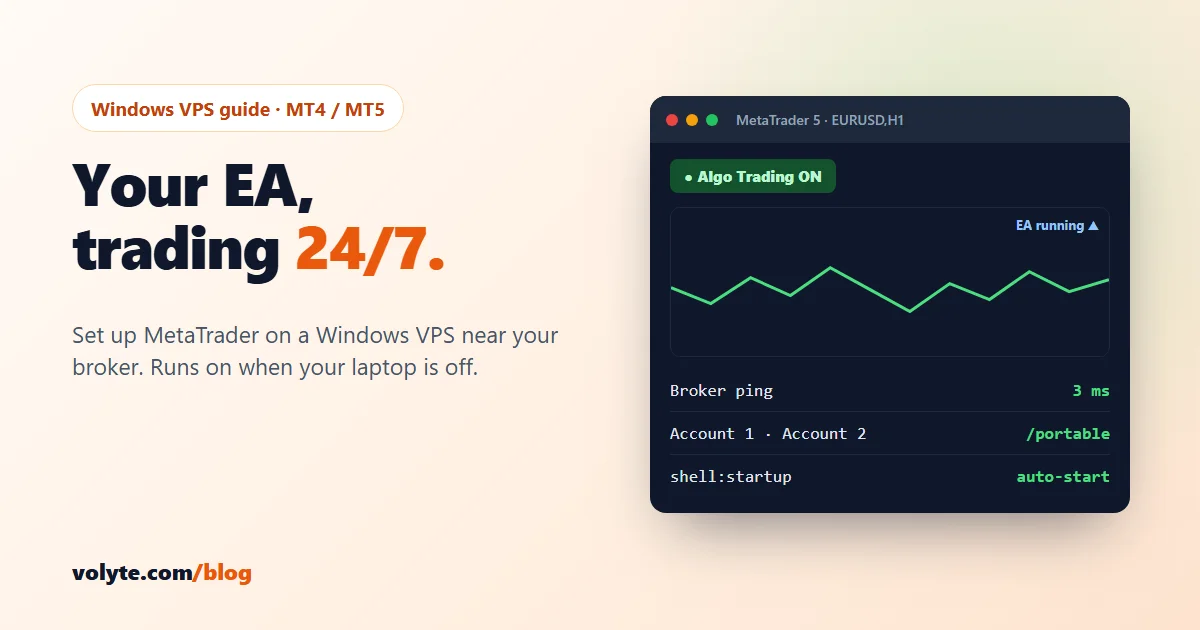
An Expert Advisor (EA) can only trade while MetaTrader is open and connected. On your own laptop that means it stops when the lid closes, the Wi-Fi drops or Windows decides to restart at 3 a.m. A Windows VPS fixes that: MetaTrader runs on a server in a data center, next to your broker, all day and all night, even when your own computer is off.
This guide sets up MT5 (or MT4) on a Windows VPS the right way: choosing the location, installing the terminal, switching on algo trading, running several accounts side by side, starting everything again by itself after a restart, and keeping Windows updates away from market hours. The steps work on Windows Server 2019, 2022 and 2025.
Before you start: take a snapshot from your client area. Then do the 8 first security steps for a Windows VPS. This server will hold the login to your trading account, so lock it down first.
1. Pick the location closest to your broker
Every order your EA sends travels from the VPS to your broker's trade server. The shorter that trip, the less slippage on fast moves. So the right location is the one closest to your broker's server, not the one closest to you:
- Most international forex brokers run their servers in London or New York. Choose our Europe or US location.
- Indian brokers (NSE, BSE and MCX terminals or broker APIs): choose India. Our India data center is in Mumbai, where the exchanges are.
Not sure where your broker's server is? Ask their support, or check it yourself in step 3: MetaTrader shows the ping to the trade server in the bottom-right corner of the window. On a well-placed VPS it is usually just a few milliseconds.
2. Choose the right size
Each MetaTrader terminal uses roughly 200–500 MB of RAM: less with a few charts, more with many charts, long history or heavy indicators. Windows Server itself needs about 2 GB.
- WVPS-1 (4 vCPU, 8 GB RAM) runs several terminals with EAs comfortably. Right for most traders.
- WVPS-2 if you run many terminals, many accounts for a team, or back-test in the Strategy Tester on the server.
More on sizing in how much RAM and CPU your VPS needs.
3. Install MetaTrader and log in
Connect to the VPS, open the browser on the server and download the terminal from your broker's own website. The broker's version comes with their server list already filled in. You can also use the official download from metatrader5.com. Don't use random download sites: a fake terminal is the easiest way to lose a trading account.
- Run the installer and keep the default folder (we change this for extra accounts in step 5).
- MetaTrader opens and asks for an account. Choose Connect with an existing trade account, type your login, password and pick your broker's server.
- Look at the bottom-right corner. You should see the connection speed and a ping in milliseconds. "No connection" or "Invalid account" means a wrong server or password.
MT4 or MT5? MT5 is the current platform: 64-bit, faster, and more brokers now open new accounts on it. MT4 is older but still used for many existing EAs. The steps below work for both. Where menu names differ, we give both. Only use MT4 if your EA or your broker needs it.
Use your master password (the trading password) on the VPS, because an EA cannot trade with the read-only investor password.
4. Switch on algo trading and attach your EA
- Copy your EA file (
.ex5for MT5,.ex4for MT4) to the server. In MetaTrader go to File → Open Data Folder, openMQL5\Experts(orMQL4\Experts) and paste it there. Then right-click Expert Advisors in the Navigator and choose Refresh. - Go to Tools → Options → Expert Advisors and tick Allow algorithmic trading (MT4: Allow automated trading). Only tick Allow DLL imports if your EA really needs it and you trust where it came from.
- Click the Algo Trading button in the toolbar (MT4: AutoTrading) so it turns green.
- Open the chart and timeframe your EA expects, drag the EA from the Navigator onto it, set its inputs and click OK.
- Check the top-right corner of the chart: a blue cap (MT5) or a smiley face (MT4) means the EA is running. A grey cap or a sad face means algo trading is off.
Now save the layout so it comes back after a restart: open File → Profiles → Save As and give it a name.
Watch the Experts and Journal tabs at the bottom for the first hour. They show every order the EA sends and every error, such as "trade is disabled" or "not enough money".
5. Run several accounts side by side
One terminal logs in to one trading account at a time. To run two or more accounts at once, give each one its own copy of MetaTrader in portable mode, so each copy keeps its settings, logs and EAs in its own folder:
- Install MetaTrader again and, on the first installer screen, click Settings and choose a new folder, for example
C:\MT5-Account2. (Or copy the whole installed folder to a new name.) - Create a shortcut to
terminal64.exein that folder (MT4:terminal.exe) and add/portableat the end of the target:
"C:\MT5-Account2\terminal64.exe" /portableStart each copy from its own shortcut and log in to a different account. Rename the shortcuts (Account 1, Account 2) so you always know which is which.
Save RAM with many terminals: in Tools → Options → Charts, lower Max bars in chart (for example to 50,000), close charts the EA doesn't use, and remove unused indicators. Task Manager shows how much each terminal uses.
6. Close Remote Desktop the right way
This is where most beginners lose a night of trading. When you're done, close the Remote Desktop window with the ✕ at the top. That only disconnects you: your session, MetaTrader and the EAs keep running on the server.
Never use Start → Sign out. Signing out closes every program in your session, MetaTrader included, and your EAs stop until you log in again.
7. Start MetaTrader again by itself after a restart
Windows sometimes has to restart, for example after an important security update. Make sure your terminals come back on their own:
- Press Win+R, type
shell:startupand press Enter. A folder opens. - Copy the shortcut for each terminal (with
/portablewhere you use it) into that folder.
MetaTrader then opens when you log in, with the last saved charts and EAs. Algo trading stays on because the setting is saved.
One catch: the Startup folder only runs after someone logs in. After a restart, Windows sits at the login screen until you connect once with Remote Desktop. If you want it fully hands-free, you can make Windows log in by itself with Microsoft's free Autologon tool (from Sysinternals), which stores the password encrypted. The trade-off: the server is logged in from the moment it starts, so use it only after the security steps above and with a strong password. Prefer to keep it simple? Just connect once after every restart. Our team can help you choose and set either one up.
8. Keep Windows updates out of market hours
Security updates matter, but a restart in the middle of a London session doesn't help anyone. The forex market is closed from Friday night to Sunday night, so that's the time for updates:
- On a Volyte server, tell our team you run a trading terminal and we schedule update restarts for the weekend.
- Managing updates yourself? Run
sconfigin PowerShell as Administrator, choose Windows Update settings and set it to Download only. Windows downloads updates but waits for you. Then every Saturday open Settings → Windows Update, install what's waiting and restart. Don't skip weeks: unpatched servers are what attackers look for. - After any restart, connect once (or let Autologon do it) and check every terminal: ping in the corner, Algo Trading green, EA icon on each chart.
Take a snapshot before you install a new EA or a big update. If something breaks, you roll back in a minute instead of rebuilding the server.
A quick word on rules in India
A VPS only runs your software; the rules come from your country. For Indian residents, RBI allows forex trading only in permitted INR currency pairs on recognised Indian exchanges through SEBI-registered brokers, and it keeps an Alert List of unauthorised forex platforms. Check that your broker is allowed before you trade. Volyte provides servers only, not trading services or advice.
Your checklist
- ☐ Location close to your broker's server (Europe/US for most international brokers, India for Indian brokers)
- ☐ Snapshot taken, Windows security steps done
- ☐ MetaTrader from your broker's site or the official site, logged in, ping shows in the corner
- ☐ Algorithmic trading allowed, Algo Trading / AutoTrading button green
- ☐ EA attached, running icon on the chart, profile saved
- ☐ Extra accounts in their own folders with
/portable - ☐ Shortcuts in
shell:startup - ☐ Update restarts on the weekend (ask our team, or "Download only" + install on Saturday)
- ☐ Close Remote Desktop with ✕, never Sign out
A Volyte Forex VPS is a Windows VPS in India, Europe or the US, with the Windows licence included, NVMe storage, snapshots and full admin access. Stuck at any step? Our team helps 24/7 on chat, ticket or phone, in Hindi and English.
Frequently asked questions
Will my EA keep running if I close Remote Desktop?
Yes, as long as you close the Remote Desktop window with the ✕ button. That only disconnects you, and MetaTrader keeps running on the server. Never choose Sign out from the Start menu, because that closes MetaTrader and stops your EAs.
Which VPS location is best for forex trading?
The one closest to your broker's trade server. Most international forex brokers have servers in London or New York, so choose Europe or the US. For Indian brokers and NSE, BSE or MCX terminals, choose India (Mumbai). MetaTrader shows the ping to your broker in the bottom-right corner.
How many MT4 or MT5 terminals can one VPS run?
Each terminal uses about 200–500 MB of RAM. A VPS with 4 vCPU and 8 GB RAM, like WVPS-1, runs several terminals with EAs comfortably. For many terminals or back-testing on the server, choose a bigger plan such as WVPS-2.
Can I run two trading accounts on one VPS?
Yes. Install a second copy of MetaTrader in its own folder and start it with the /portable switch, for example "C:\MT5-Account2\terminal64.exe" /portable. Each copy logs in to its own account and keeps its own settings and EAs.
What happens to my EA when Windows restarts?
MetaTrader closes during the restart. Put its shortcut in the shell:startup folder so it opens again with your saved charts and EAs when you log in. Connect once after the restart, or set up automatic login, and set Windows Update to install on weekends when the forex market is closed.
Should I use MT4 or MT5?
Use MT5 unless your EA or broker needs MT4. MT5 is the current, 64-bit platform and more brokers open new accounts on it. EAs are not interchangeable: an MT4 EA (.ex4) does not run in MT5, which needs an .ex5 file.