
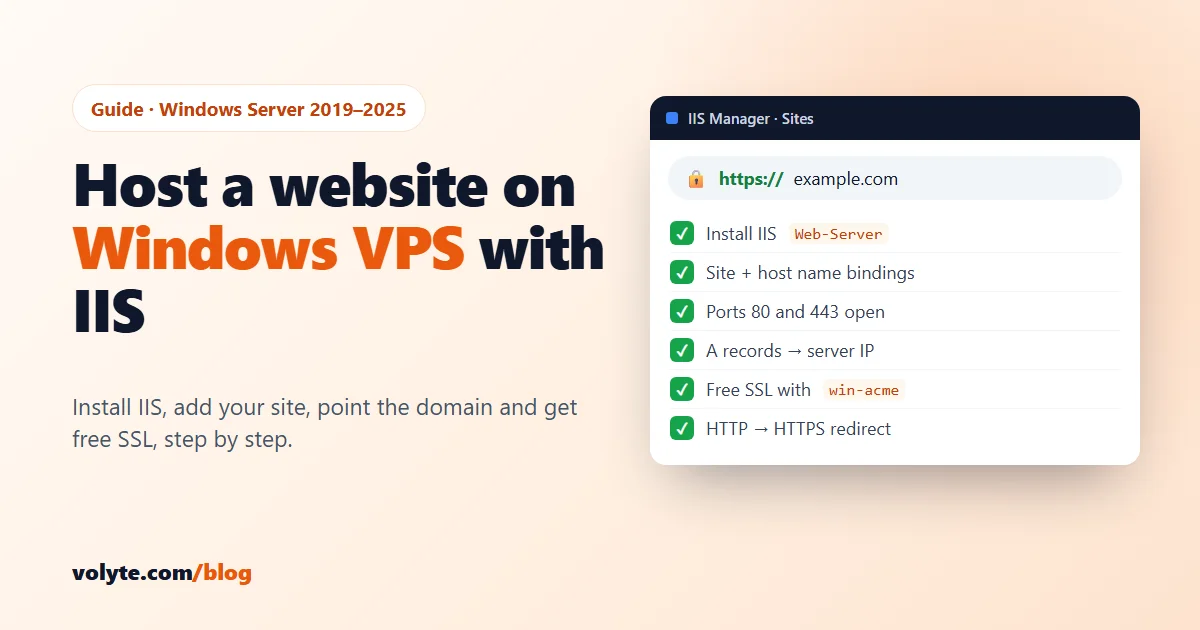
Windows Server comes with its own web server, IIS (Internet Information Services). It is free, built in, and the natural home for ASP.NET sites, internal company portals and simple HTML websites. In this guide you'll install IIS, add your website, point your domain to it, get a free SSL certificate and send every visitor to HTTPS. Then we cover the errors people hit most often, and how to fix them.
The steps work on Windows Server 2019, 2022 and 2025. Run the commands in PowerShell as Administrator (right-click the Start button → Terminal (Admin)). We use example.com as the domain; replace it with yours everywhere.
Before you start: take a snapshot from your client area. If something goes wrong, you can roll back in a minute. New server? Do the 8 first security steps first.
1. Install IIS
One command installs IIS and the IIS Manager console:
Install-WindowsFeature -Name Web-Server -IncludeManagementToolsHosting an ASP.NET (.NET Framework) site? Add ASP.NET 4.x too:
Install-WindowsFeature -Name Web-Asp-Net45For a modern ASP.NET Core app, install the ASP.NET Core Hosting Bundle from Microsoft's official .NET download page instead, then restart IIS with iisreset.
Check that it works: open http://localhost in a browser on the server. You should see the blue IIS welcome page.
2. Create a folder for your website
Keep each site in its own folder, away from the default wwwroot:
New-Item -ItemType Directory -Path "C:\inetpub\sites\example.com"
Set-Content "C:\inetpub\sites\example.com\index.html" "<h1>example.com is working</h1>"
The test page proves the setup before you upload your real files. Give IIS permission to read the folder:
icacls "C:\inetpub\sites\example.com" /grant "IIS_IUSRS:(OI)(CI)RX"If your app needs to write files (uploads, cache), give write access only to that one sub-folder, not the whole site.
3. Add the website in IIS
Create the site with bindings for both example.com and www.example.com:
Import-Module WebAdministration
New-Website -Name "example.com" -PhysicalPath "C:\inetpub\sites\example.com" -HostHeader "example.com" -Port 80
New-WebBinding -Name "example.com" -HostHeader "www.example.com" -Port 80 -Protocol http
The host header is what lets one server run many websites: IIS reads the domain name in each request and sends it to the matching site. You can do the same in IIS Manager → Sites → Add Website if you prefer clicking.
IIS creates a separate application pool for the site automatically. That's good: if one site crashes, the others keep running.
4. Open the firewall for web traffic
Make sure ports 80 (HTTP) and 443 (HTTPS) are open:
New-NetFirewallRule -DisplayName "Web HTTP and HTTPS" -Direction Inbound -Protocol TCP -LocalPort 80,443 -Action AllowOpen only these two ports for the website. Database ports like SQL Server (1433) should never be open to the whole internet.
5. Point your domain to the server
At your domain registrar (or DNS provider), create two A records pointing to your server's IP address:
@→ your server IP (forexample.com)www→ your server IP (or a CNAME toexample.com)
Our guide on how to point your domain to your VPS shows this step by step for the common registrars. Changes usually show up within minutes, but can take a few hours. Check from your own PC:
Resolve-DnsName example.comWhen it shows your server's IP, open http://example.com. You should see your test page.
Want to test before changing DNS? On your own PC (not the server), add a line 203.0.113.10 example.com with your server's IP to C:\Windows\System32\drivers\etc\hosts, open the site, and remove the line afterwards.
6. Get a free SSL certificate with win-acme
win-acme is a free, open-source tool that gets certificates from Let's Encrypt, adds the HTTPS binding in IIS and renews the certificate automatically. Your domain must already point to the server (step 5), and port 80 must be open, because Let's Encrypt checks your domain over HTTP.
- Download the latest release for your system (usually x64, trimmed) from the official site, win-acme.com, which links to its GitHub releases page.
- Extract it to a permanent folder, for example
C:\tools\win-acme. Don't run it from Downloads: the renewal task runs from this folder. - Run
wacs.exeas Administrator. - Choose N: Create certificate (default settings), pick your site
example.com, and accept both bindings (with and withoutwww). - Enter an email address for expiry warnings and accept the Let's Encrypt terms.
win-acme creates the HTTPS binding on port 443 and a scheduled task that renews the certificate before it expires. You can check it in Task Scheduler, or test a renewal any time by running wacs.exe again and choosing R: Run renewals.
Open https://example.com. You should see the padlock.
7. Send every visitor to HTTPS
Visitors who type http:// should land on the secure version. Install Microsoft's free URL Rewrite module (search "IIS URL Rewrite" on Microsoft's official IIS site), then save this as web.config in your site folder:
<?xml version="1.0" encoding="UTF-8"?>
<configuration>
  <system.webServer>
    <rewrite>
      <rules>
        <rule name="Redirect to HTTPS" stopProcessing="true">
          <match url="(.*)" />
          <conditions>
            <add input="{HTTPS}" pattern="off" />
          </conditions>
          <action type="Redirect" url="https://{HTTP_HOST}/{R:1}" redirectType="Permanent" />
        </rule>
      </rules>
    </rewrite>
  </system.webServer>
</configuration>
If your site already has a web.config, add only the <rewrite> section inside its existing <system.webServer>. Install URL Rewrite first: without it, this file causes an HTTP 500.19 error.
8. Upload your real website
Copy your files into C:\inetpub\sites\example.com and delete the test index.html. The easiest ways:
- Remote Desktop copy-paste: copy files on your PC and paste them on the server. Fine for small sites.
- A ZIP file: upload one ZIP and extract it on the server. Much faster than thousands of small files.
- Publish from Visual Studio (Web Deploy) or your build pipeline for .NET apps.
Your home page must be named index.html, default.aspx or another name in IIS's Default Document list.
Site not loading? Common errors and fixes
- Browser can't reach the site at all: check DNS with
Resolve-DnsName example.com, then the firewall (step 4). On the server,http://localhostshould still work. - "Bad Request – Invalid Hostname" (HTTP 400): no binding matches the domain you typed. Add the missing binding, often the
wwwone. - You see the blue IIS welcome page instead of your site: the request went to Default Web Site. Check that your site's binding uses the exact domain name, then stop the default site with
Stop-Website "Default Web Site". - HTTP 403.14 – Forbidden: IIS found no home page. Add
index.html(or your app's start page) to the folder, or add its name to Default Document. Don't switch on directory browsing to fix it. - HTTP 401.3 – Unauthorized: IIS can't read the files. Repeat the
icaclscommand from step 2. - HTTP 500.19:
web.configuses a module that isn't installed, usually URL Rewrite or the ASP.NET Core module. Install it, or remove that section. - win-acme says validation failed: the domain doesn't point to this server yet, or port 80 is blocked. Fix DNS or the firewall and run it again.
For any other error, the IIS logs show every request with its status code: C:\inetpub\logs\LogFiles\W3SVC1 (the number matches your site's ID in IIS Manager).
Your checklist
- ☐ Snapshot taken
- ☐ IIS installed (plus ASP.NET if your site needs it)
- ☐ Site folder created, IIS_IUSRS can read it
- ☐ Website added with bindings for
example.comandwww - ☐ Ports 80 and 443 open, nothing else for the website
- ☐ A records for
@andwwwpoint to the server - ☐ Free SSL from win-acme, renewal task in Task Scheduler
- ☐ HTTP redirects to HTTPS
- ☐ Real files uploaded, test page removed
A Volyte Windows VPS comes security-hardened, with the Windows licence included and NVMe storage in our Mumbai data center. Stuck at any step? Our team helps 24/7 on chat, ticket or phone, in Hindi and English. Running WordPress or PHP? A Linux server is usually the easier home: see how to install WordPress on a VPS. Not sure which plan fits? Read how much RAM and CPU your VPS needs.
Frequently asked questions
Can I host a website on a Windows VPS?
Yes. Windows Server includes IIS, a free built-in web server. Install it with one PowerShell command, add your site with your domain as the host name, point your domain's A record to the server and add a free SSL certificate.
Is IIS free?
Yes. IIS is part of Windows Server and costs nothing extra. On a Volyte Windows VPS, the Windows Server licence is already included in the price.
How do I get a free SSL certificate on IIS?
Use win-acme, a free open-source tool for Let's Encrypt. Run wacs.exe as Administrator, choose your IIS site, and it creates the HTTPS binding and a scheduled task that renews the certificate automatically. Your domain must point to the server and port 80 must be open.
Can I host more than one website on one Windows VPS?
Yes. Give each site its own folder and its own host name binding in IIS. IIS reads the domain name in each request and sends it to the right site. Each site gets its own application pool, so one site crashing does not take the others down.
Why does my IIS site show HTTP 403.14?
IIS found no home page in the site folder. Add an index.html or your app's start page, or add its file name to the Default Document list in IIS Manager. Don't enable directory browsing to fix it, because that shows all your files to visitors.