
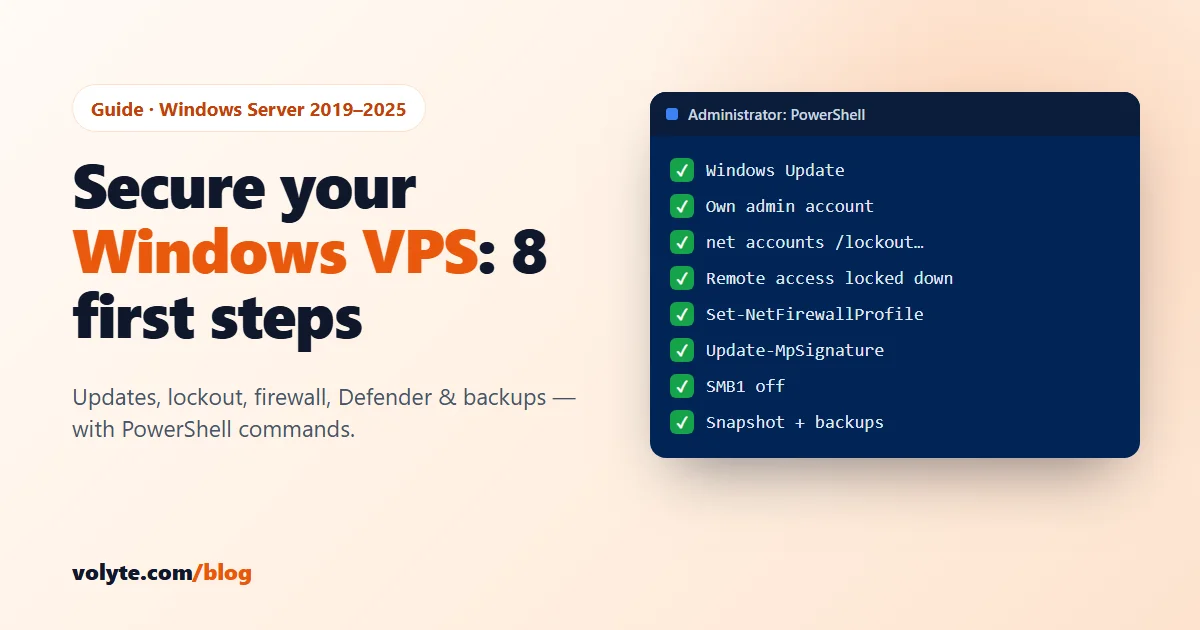
A Windows server on the internet gets password-guessing attempts within hours — bots try Administrator with common passwords, day and night. A few settings stop almost all of them. Here are the 8 first steps for a new Windows VPS, with the exact PowerShell commands.
The steps work on Windows Server 2019, 2022 and 2025. Open PowerShell as Administrator (right-click the Start button → Terminal (Admin) or Windows PowerShell (Admin)) to run the commands.
Golden rule: before you change remote access or firewall settings, take a snapshot and keep your current session open. If a change locks you out, you can roll back — or our support team can undo it for you.
1. Install all Windows updates
Most attacks use holes that Microsoft has already fixed. Open Settings → Windows Update and click Check for updates, or use the built-in tool:
sconfigChoose Install updates, install everything, then restart. Microsoft releases security fixes on the second Tuesday of every month ("Patch Tuesday"); we cover the important ones in our monthly security alert.
2. Use your own admin account and a long password
Every bot knows the name Administrator. Create your own admin account with a long passphrase (four or more random words, 16+ characters), and give staff their own normal accounts — never share one login.
$pw = Read-Host -AsSecureString "New password"
New-LocalUser -Name "rahul.admin" -Password $pw -PasswordNeverExpires
Add-LocalGroupMember -Group "Administrators" -Member "rahul.admin"
For a staff member who only needs to work in Tally or an app, add them to Remote Desktop Users instead of Administrators:
Add-LocalGroupMember -Group "Remote Desktop Users" -Member "priya"Log in with the new admin account once to check it works, then change the built-in Administrator password to a long random one and keep it somewhere safe.
3. Lock accounts after repeated wrong passwords
On many Windows Server installs the account lockout threshold is 0 — never lock, so a bot can guess forever. Check yours:
net accountsSet accounts to lock for 15 minutes after 10 wrong passwords:
net accounts /lockoutthreshold:10 /lockoutwindow:15 /lockoutduration:15Ten tries is plenty for a person who mistyped, and makes guessing useless for a bot.
4. Lock down remote access
Remote Desktop is how you work on the server, so it is also what attackers aim at. Three settings make the biggest difference:
- Keep Network Level Authentication on (it is on by default). It makes people prove who they are before Windows even shows a login screen. Check in Settings → System → Remote Desktop.
- Only the people who need it. Only members of Administrators and Remote Desktop Users can connect. Remove old staff the day they leave:
Remove-LocalGroupMember -Group "Remote Desktop Users" -Member "oldname" - Allow only your office IP (if it is fixed). If your office or home internet has a fixed IP address, allow remote access only from there:
Set-NetFirewallRule -DisplayGroup "Remote Desktop" -RemoteAddress 203.0.113.10,198.51.100.25Replace the example addresses with your own. Don't do this if your IP changes (most home and mobile connections) — you would lock yourself out. Not sure? Ask us and we'll set it up safely. Changing the Remote Desktop port is optional: it reduces log noise from bots, but it is not real protection — steps 2 and 3 are.
5. Make sure the firewall is on — and close what you don't use
Windows Defender Firewall should be on for all three profiles:
Get-NetFirewallProfile | Select-Object Name, Enabled
Set-NetFirewallProfile -All -Enabled True
See which ports your server is listening on:
Get-NetTCPConnection -State Listen | Sort-Object LocalPort | Select-Object LocalAddress, LocalPort, OwningProcessOpen ports only for what you serve — for example 80 and 443 for a website. Never open SQL Server (1433) or file sharing (445) to the whole internet. If an app needs a port, allow only the IPs that use it:
New-NetFirewallRule -DisplayName "SQL from office" -Direction Inbound -Protocol TCP -LocalPort 1433 -RemoteAddress 203.0.113.10 -Action Allow6. Keep Microsoft Defender on and up to date
Windows Server includes Microsoft Defender Antivirus. Check that it is running and has fresh signatures:
Get-MpComputerStatus | Select-Object AntivirusEnabled, RealTimeProtectionEnabled, AntivirusSignatureLastUpdated
Update-MpSignature
Both Enabled values should say True. Don't install a second antivirus on top — two scanners slow the server down and fight each other.
7. Switch off old and risky features
SMB1, the old file-sharing protocol used by the WannaCry ransomware, is not installed on Windows Server 2019 and later — but check, especially on a server someone else set up:
Get-SmbServerConfiguration | Select-Object EnableSMB1Protocol
Set-SmbServerConfiguration -EnableSMB1Protocol $false -Force
Also uninstall software you no longer use, and don't browse the web or read email on the server. Most Windows infections arrive through a download or an attachment, not through a hack.
8. Take a snapshot and set up backups
Security can fail; backups are what save your business. Take a snapshot from your client area before every big change — Windows updates, new software, settings like the ones above. For your data, turn on automatic daily backups and keep an extra copy of important files (Tally data, databases) somewhere else. Our Tally data guide shows how to keep regular Tally backups.
Quick check: is someone trying to get in?
Windows records every failed login as event 4625 in the Security log. See the latest ones:
Get-WinEvent -FilterHashtable @{LogName='Security'; Id=4625} -MaxEvents 20 |
  Select-Object TimeCreated, @{n='Account';e={$_.Properties[5].Value}}, @{n='FromIP';e={$_.Properties[19].Value}}
Hundreds of attempts for names like administrator, admin or user from IPs you don't know is normal internet noise — it means steps 2–4 matter. Attempts for your real staff names deserve a closer look.
Your checklist
- ☐ All Windows updates installed, server restarted
- ☐ Own admin account with a long passphrase; staff have their own logins
- ☐ Account lockout: 10 attempts, 15 minutes
- ☐ Network Level Authentication on; only needed users can connect; office IP limit if your IP is fixed
- ☐ Firewall on for all profiles; no SQL or file sharing open to the internet
- ☐ Microsoft Defender on with fresh signatures
- ☐ SMB1 off, unused software removed
- ☐ Snapshot taken, daily backups on
On a Volyte Windows VPS, the server is security-hardened before handover, and our team handles Windows updates, patching and monitoring as part of the managed service — so most of this list is done for you. These steps are still worth knowing: they show what to check, and what to keep doing as you add users and software. Using Linux? Read Secure Your Linux VPS in 10 Minutes. Choosing a size? See how much RAM and CPU your VPS needs.
Frequently asked questions
Is a Windows VPS secure?
Yes, when it is kept up to date and set up properly. Most break-ins happen through missing updates, weak or shared passwords, and services like SQL Server open to the whole internet. Install updates, use long unique passwords, turn on account lockout and keep the firewall on.
Do I need antivirus on Windows Server?
Windows Server includes Microsoft Defender Antivirus, which is enough for most servers. Make sure real-time protection is on and signatures are up to date with Get-MpComputerStatus. Don't run two antivirus products at the same time.
Should I change the Remote Desktop port?
It is optional. A different port reduces the number of bot attempts in your logs, but it is not real protection. A long password, account lockout, Network Level Authentication and allowing only your own IP address protect you far better.
How do I see failed login attempts on Windows Server?
Failed logins are saved as event ID 4625 in the Security log. Open Event Viewer → Windows Logs → Security and filter for 4625, or run Get-WinEvent with LogName Security and Id 4625 in PowerShell to list the account names and IP addresses.
What if I lock myself out of my Windows VPS?
Roll back to the snapshot you took before the change, or contact your provider's support team to undo the firewall or account setting. On Volyte, our 24/7 support team can help on chat, ticket or phone.