
Lots of business software needs a Microsoft SQL Server database: billing and inventory apps, ERP systems, ASP.NET websites, custom tools your developer built. For most small and medium setups, the free SQL Server Express edition is all you need, and a Windows VPS is a natural home for it: always on, reachable from your office and home, with no server under someone's desk.
In this guide you'll install SQL Server 2025 Express, create a database and a login for your app, allow remote connections on a fixed port without opening it to the whole internet, and set up the daily backup that Express doesn't do by itself. The steps work on Windows Server 2019, 2022 and 2025. Run commands in PowerShell as Administrator.
Before you start: take a snapshot from your client area. New server? Do the 8 first security steps for a Windows VPS first. A database server is a favourite target for attackers.
Is Express enough for you?
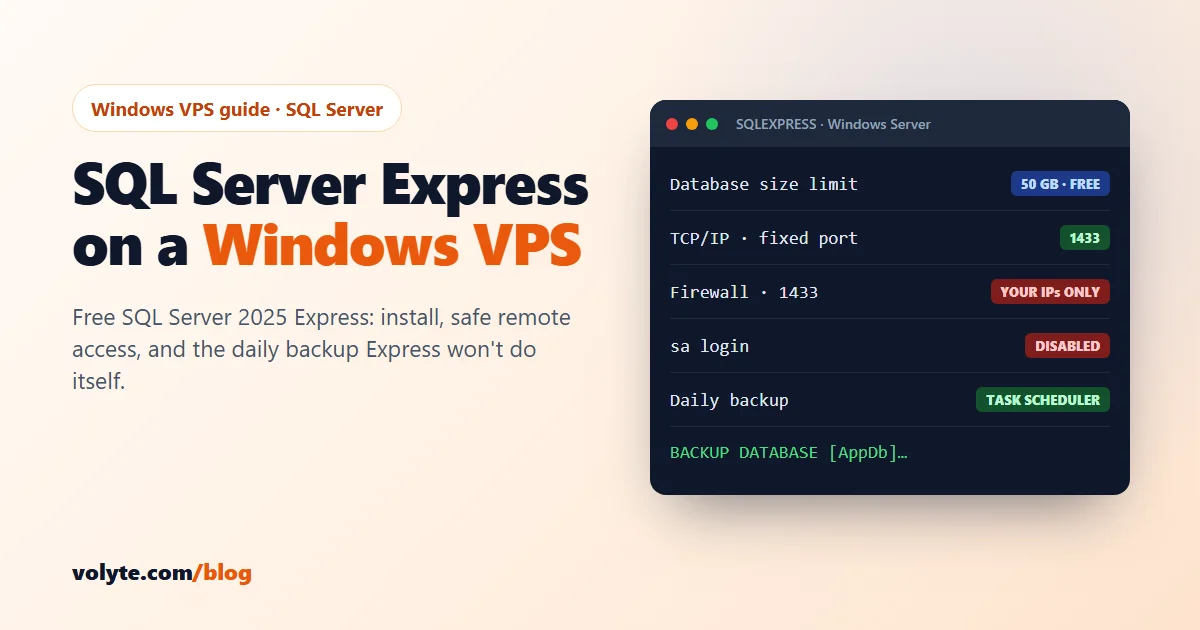
SQL Server Express is free, including for commercial use. The limits in the 2025 version:
| Limit | SQL Server 2025 Express |
|---|---|
| Size of each database | 50 GB (it was 10 GB in 2022 and older versions) |
| CPU | Up to 4 cores |
| Memory for data cache | About 1.4 GB (1,410 MB) |
| SQL Server Agent (scheduled jobs) | Not included, so we schedule backups with Task Scheduler |
That covers most business apps with a handful to a few dozen users. The limits are per database, so you can run several databases on one server. If a database will grow past 50 GB or you need more memory for heavy reports, you need a paid edition (Standard).
Because Express caps its own memory, a 4 vCPU / 8 GB server such as WVPS-1 leaves plenty of room for your app, IIS and remote users on the same machine.
1. Download and install SQL Server Express
- On the VPS, open the browser and go to Microsoft's official SQL Server downloads page. Download the free Express edition. Only use Microsoft's own site.
- Run the installer and choose Custom (not Basic). Custom lets you choose the login mode during setup.
- In the SQL Server Installation Center, choose New SQL Server standalone installation.
- Features: tick Database Engine Services. That's all most apps need.
- Instance: keep the named instance
SQLEXPRESS. - Database Engine Configuration:
- If only apps on this server use the database, keep Windows authentication.
- If apps or people connect from other computers, choose Mixed Mode and set a long, unique password for
sa(we disablesain step 3). - Click Add Current User so your Windows account is an administrator of SQL Server.
- Finish the install. Then download SQL Server Management Studio (SSMS) from Microsoft, the free tool for managing databases. You can install it on the VPS, on your own PC, or both.
Check that the service is running:
Get-Service 'MSSQL$SQLEXPRESS'Status should be Running.
2. Create a database and a login for your app
Never let an app connect as sa or as an administrator. Give it its own login that can only reach its own database. In SSMS, connect to .\SQLEXPRESS, open New Query and run (change the names and use your own strong password):
CREATE DATABASE AppDb;
GO
CREATE LOGIN appuser WITH PASSWORD = 'Use-a-long-unique-password-here';
GO
USE AppDb;
CREATE USER appuser FOR LOGIN appuser;
ALTER ROLE db_owner ADD MEMBER appuser;
GO
Many apps create their own tables on first start; others come with a script or a .bak file from the vendor to restore. Either way, they connect as appuser.
3. Disable the sa account
Attackers scan the internet for SQL Servers and try to guess the sa password all day long. Once your own admin login and app login work, switch sa off:
ALTER LOGIN sa DISABLE;Your Windows administrator account (added during setup) still has full control.
4. Allow remote connections on a fixed port
Skip this step if only apps on the VPS itself use the database. That's the safest setup.
By default a named instance like SQLEXPRESS doesn't listen on the network, and when it does, it picks a random port. Give it a fixed port:
- Open SQL Server Configuration Manager (search for it in the Start menu).
- Go to SQL Server Network Configuration → Protocols for SQLEXPRESS, right-click TCP/IP and choose Enable.
- Open TCP/IP's properties → IP Addresses tab → scroll to IPAll. Clear TCP Dynamic Ports (leave it empty) and set TCP Port to
1433. - Restart SQL Server:
Restart-Service 'MSSQL$SQLEXPRESS'5. Open the firewall only to your own IPs
Never open port 1433 to the whole internet. Allow only the addresses that need it: your office's fixed IP, your app server, your developer. Replace the example IPs with yours:
New-NetFirewallRule -DisplayName "SQL Server - office only" -Direction Inbound `
  -Protocol TCP -LocalPort 1433 -RemoteAddress 203.0.113.10,198.51.100.20 -Action Allow
Find your office's public IP by searching "what is my IP" from the office. No fixed IP at home or in the office? Ask your internet provider for one, or connect through a VPN to the server instead of opening the port. To add an address later:
Set-NetFirewallRule -DisplayName "SQL Server - office only" -RemoteAddress 203.0.113.10,198.51.100.20,192.0.2.506. Connect from your PC or app
In SSMS on your own computer, use the server's IP and port, separated by a comma (not a colon):
203.0.113.25,1433Choose SQL Server Authentication, log in as appuser. Newer SSMS versions encrypt the connection by default; because the server uses its own self-signed certificate, tick Trust server certificate.
A typical .NET connection string:
Server=203.0.113.25,1433;Database=AppDb;User Id=appuser;Password=...;Encrypt=True;TrustServerCertificate=TrueUsing the port number means you don't need the SQL Server Browser service or UDP port 1434, which is one less thing open.
7. Schedule a daily backup
Express has no SQL Server Agent, so it never backs itself up. We'll use a small script and Windows Task Scheduler.
a) Create a backup folder and let SQL Server write to it (SQL Server writes backup files with its own service account):
New-Item -ItemType Directory C:\SQLBackups
icacls 'C:\SQLBackups' /grant 'NT Service\MSSQL$SQLEXPRESS:(OI)(CI)M'
b) Save the backup command as C:\SQLBackups\backup.sql. It writes a new file with the date and time in the name, and checks the backup as it writes it:
DECLARE @file nvarchar(260) = N'C:\SQLBackups\AppDb_' + FORMAT(GETDATE(), 'yyyyMMdd_HHmm') + N'.bak';
BACKUP DATABASE [AppDb] TO DISK = @file WITH CHECKSUM, INIT;
Several databases? Add one BACKUP DATABASE pair per database.
c) Save a small runner as C:\SQLBackups\backup.ps1. It runs the backup, then deletes backups older than 14 days so the disk doesn't fill up:
sqlcmd -S .\SQLEXPRESS -E -b -i C:\SQLBackups\backup.sql
if ($LASTEXITCODE -eq 0) {
  Get-ChildItem C:\SQLBackups -Filter *.bak |
    Where-Object LastWriteTime -lt (Get-Date).AddDays(-14) | Remove-Item
}
Old files are only deleted if the new backup worked. If PowerShell says sqlcmd isn't recognised, install Microsoft's sqlcmd utility (on Windows Server 2025: winget install sqlcmd).
d) Test it once by hand and check that a .bak file appears in C:\SQLBackups:
powershell -ExecutionPolicy Bypass -File C:\SQLBackups\backup.ps1e) Schedule it. Open Task Scheduler → Create Task:
- General: name it "SQL backup", choose Run whether user is logged on or not and tick Run with highest privileges. Use the Windows account you added as SQL administrator during setup.
- Triggers: Daily, at a quiet time such as 2:00 AM.
- Actions: Start a program →
powershell.exe, arguments-ExecutionPolicy Bypass -File C:\SQLBackups\backup.ps1
Task Scheduler asks for that account's password once and stores it securely.
8. Keep a copy somewhere else
A backup on the same server doesn't help if the server itself has a problem. Copy the .bak files somewhere else regularly: another server, a storage VPS, or cloud storage. Also take a snapshot from your client area before every big change, such as a software update or a Windows update.
And test a restore every few months. In SSMS: right-click Databases → Restore Database, pick a .bak file and restore it under a new name (for example AppDb_test) so you don't overwrite the live database. A backup you've never restored is only a hope.
Your checklist
- ☐ Snapshot taken, Windows security steps done
- ☐ SQL Server 2025 Express installed from Microsoft's site, service running
- ☐ Database and its own app login created (not sa)
- ☐
sadisabled - ☐ Remote access only if needed: TCP/IP on, fixed port 1433
- ☐ Firewall allows 1433 only from your own IPs
- ☐ Daily backup task tested, old files cleaned up after 14 days
- ☐ Backups copied off the server; a test restore done
A Volyte Windows VPS comes with the Windows Server licence included, NVMe storage for fast databases, snapshots, and locations in India (Mumbai), Europe and the US. Hosting an ASP.NET site on the same server? See how to host a website with IIS and free SSL. Not sure which size you need? Read how much RAM and CPU your VPS needs. Stuck at any step? Our team helps 24/7 on chat, ticket or phone, in Hindi and English.
Frequently asked questions
Is SQL Server Express free for commercial use?
Yes. SQL Server Express is free to download and use in production, including for commercial business software. You only pay for the Windows server it runs on, and on a Volyte Windows VPS the Windows licence is already included.
What is the database size limit of SQL Server Express?
In SQL Server 2025 Express each database can be up to 50 GB. In SQL Server 2022 and older versions the limit was 10 GB. The limit is per database, so you can run several databases on one server. Express also uses at most 4 CPU cores and about 1.4 GB of memory for its data cache.
How do I connect to SQL Server Express remotely?
Enable TCP/IP for the SQLEXPRESS instance in SQL Server Configuration Manager, set a fixed TCP port such as 1433 under IPAll, restart the service and allow that port in the Windows firewall only from your own IP addresses. Then connect with the server's IP and port separated by a comma, for example 203.0.113.25,1433.
Should I open port 1433 to the internet?
No. Attackers constantly scan for open SQL Server ports and try to guess passwords. Allow port 1433 only from the specific IP addresses that need it, such as your office or app server, or connect through a VPN. If only apps on the same server use the database, don't open the port at all.
How do I schedule backups in SQL Server Express?
Express does not include SQL Server Agent, so use Windows Task Scheduler. Save a BACKUP DATABASE command in a .sql file, run it with sqlcmd from a small PowerShell script that also deletes old backups, and schedule that script daily. Copy the backup files off the server too, and test a restore regularly.