
Your Windows VPS holds the things your business can't lose: Tally company data, a SQL Server database, your website files, shared documents. Hardware failures are rare on a good server. Most data loss comes from people and software instead: a file deleted by mistake, a bad update, a broken app upgrade, or ransomware that gets in through a weak password.
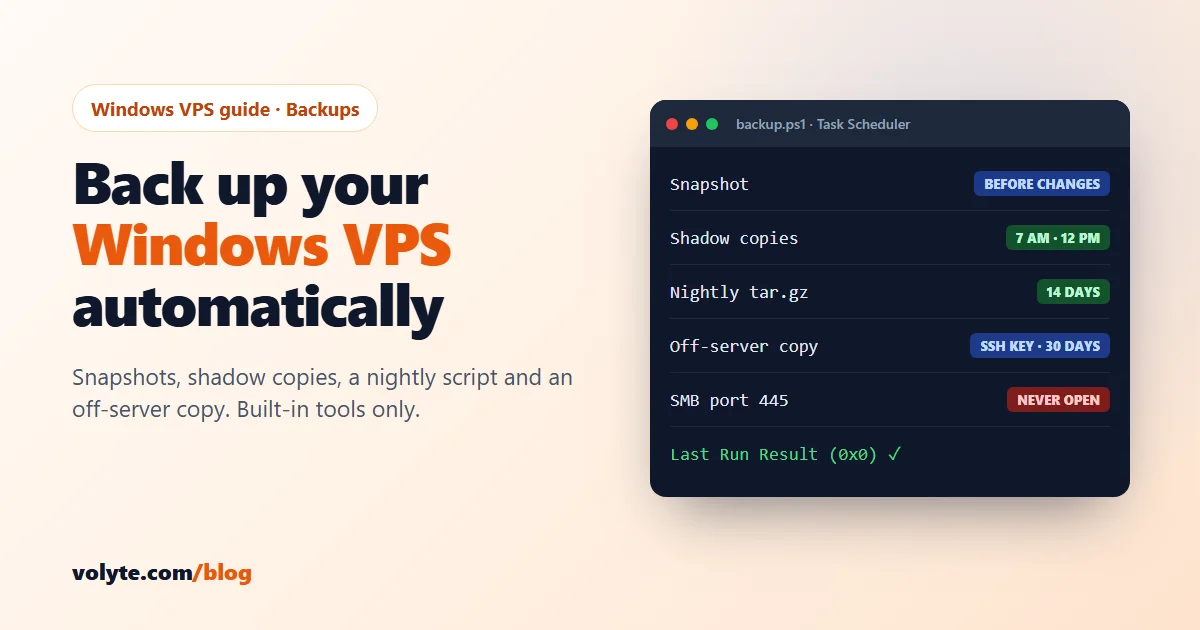
In this guide you'll set up a backup plan that runs by itself: a snapshot before big changes, shadow copies for quick "undo", a nightly backup script that keeps 14 days of dated copies, an automatic copy to another server over SSH, and a restore test. Everything uses tools already built into Windows Server 2019, 2022 and 2025. Run commands in PowerShell as Administrator.
Before you start: take a snapshot from your client area. New server? Do the 8 first security steps for a Windows VPS first, so the backups you make are of a clean, locked-down server.
The plan: four layers, each for a different problem
| Layer | Protects against | How often |
|---|---|---|
| Snapshot (client area) | A bad Windows update or software install: roll the whole server back | Before every big change |
| Shadow copies (built into Windows) | A file deleted or overwritten by mistake | Twice a day, automatic |
| Nightly backup script | Needing a file or folder from last week | Every night, 14 days kept |
| Off-server copy | Losing the server itself, or ransomware on it | Every night, 30 days kept |
No single layer is enough. Snapshots and shadow copies live with the server, so they don't help if the server itself is lost. The off-server copy is the one that really saves you.
1. Decide what to back up
You don't need to back up Windows itself: you can reinstall it or restore a snapshot. Back up your data. Make a short list of folders, for example:
- Tally: your company data folder, such as
C:\TallyPrime\Data(use the data path Tally shows when you select a company) - Websites:
C:\inetpub\wwwrootor your site folders - Databases: not the live
.mdffiles, but the.bakfiles from a database backup (see the SQL Server Express guide) - Shared documents: for example
D:\Sharedor users' Desktop and Documents folders - App settings: config files, licence files, MT4/MT5 profiles
Keep the list short and real. A backup of 5 folders that runs every night beats a full-disk backup that fills the drive and stops working.
2. Take a snapshot before every big change
A snapshot saves the whole server, as it is right now, in one click from your client area. If a Windows update, a new version of your accounting software or a settings change breaks something, you restore the snapshot and you're back in minutes.
Make it a habit: snapshot first, then change. A snapshot is not a long-term backup, because it is a single point in time stored with the server. That's what the next layers are for.
3. Turn on shadow copies for quick undo
Shadow copies (Volume Shadow Copy) keep earlier versions of files on the same drive. When someone deletes or overwrites a file, they can right-click the folder, choose Properties → Previous Versions and get it back without asking anyone.
- Open This PC, right-click the drive with your data (for example
C:) and choose Configure Shadow Copies. - Select the drive and click Enable. Windows takes the first shadow copy right away.
- Click Settings and set a size limit, for example 10% of the drive. The default schedule takes a copy at 7:00 AM and 12:00 PM on weekdays; you can change it under Schedule.
Shadow copies are great for everyday mistakes, but ransomware often deletes them first. Treat them as a convenience, not your backup.
4. Write the nightly backup script
Create a folder C:\Backups, then save this as C:\Backups\backup.ps1. Change the list of folders to your own:
# C:\Backups\backup.ps1 - nightly backup of your data folders
$folders = @(
  'C:\TallyPrime\Data',
  'C:\inetpub\wwwroot',
  'C:\SQLBackups',
  'D:\Shared'
)
$dest  = 'C:\Backups'
$stamp = Get-Date -Format 'yyyy-MM-dd'
$file  = "$dest\backup-$stamp.tar.gz"

Start-Transcript -Path "$dest\backup.log" -Append

# 1. Pack all folders into one dated, compressed file
tar.exe -czf $file @folders
if ($LASTEXITCODE -ne 0) { Write-Output "tar finished with warnings or errors ($LASTEXITCODE)" }

# 2. Keep 14 days on this server, delete older files
Get-ChildItem $dest -Filter 'backup-*.tar.gz' |
  Where-Object LastWriteTime -lt (Get-Date).AddDays(-14) |
  Remove-Item

Stop-Transcript
This uses tar.exe, which is built into Windows Server 2019 and newer. It handles large files and the same file opens on Windows, Linux or Mac. Run the script once by hand:
powershell.exe -ExecutionPolicy Bypass -File C:\Backups\backup.ps1Check that a file like backup-2026-11-23.tar.gz appeared and that its size makes sense. Read C:\Backups\backup.log for errors.
Open files: files that an app holds open, such as Tally data while Tally is running or live SQL Server database files, may be skipped or copied half-written. Run the backup at night when nobody is working, ask users to close Tally before they log off, and back up databases with their own backup command (the .bak files), not by copying the database files.
5. Schedule it with Task Scheduler
Open Task Scheduler → Create Task (not "Create Basic Task"):
- General: name it "Nightly backup". Click Change User or Group, type
SYSTEMand click OK. Tick Run with highest privileges. - Triggers: Daily, at a quiet time such as 1:30 AM. If you also run a SQL backup task, put this one after it.
- Actions: Start a program →
powershell.exe, arguments-ExecutionPolicy Bypass -File C:\Backups\backup.ps1 - Settings: tick Run task as soon as possible after a scheduled start is missed.
Right-click the task and choose Run to test it. The Last Run Result column should show (0x0).
6. Copy every backup to another server
A backup on the same server doesn't help if the server is lost or ransomware encrypts the whole drive. The script below sends each night's file to a second server, such as a low-cost Linux storage VPS, using scp. It is part of the OpenSSH client built into Windows Server 2019 and newer, so there is nothing extra to install.
Don't use a Windows file share (SMB, port 445) over the internet to copy backups. That port is one of the most attacked on the internet. SSH with a key is encrypted and much safer.
a) On the Windows VPS, create a key just for backups. When it asks for a passphrase, press Enter twice (the task has to run without anyone typing):
ssh-keygen -t ed25519 -f C:\Backups\backup_key
icacls C:\Backups\backup_key /inheritance:r /grant:r "Administrators:F" "SYSTEM:F"
The second line makes sure only administrators and the system can read the private key. OpenSSH refuses to use a key that other users can read.
b) On the storage server (Linux), create a backup user and folder, then paste the contents of C:\Backups\backup_key.pub into its key file:
sudo adduser --disabled-password --gecos "" backup
sudo mkdir -p /home/backup/.ssh /backups/winvps
sudo nano /home/backup/.ssh/authorized_keys      # paste the .pub line, save
sudo chown -R backup:backup /home/backup/.ssh /backups/winvps
sudo chmod 700 /home/backup/.ssh
sudo chmod 600 /home/backup/.ssh/authorized_keys
Allow SSH on the storage server only from your Windows VPS's IP address (see Secure Your Linux VPS in 10 Minutes), and delete copies older than 30 days there with a daily cron job:
sudo crontab -e
# add this line:
30 5 * * * find /backups/winvps -name 'backup-*.tar.gz' -mtime +30 -delete
c) Connect once by hand to save the storage server's fingerprint (type yes when asked). Replace 203.0.113.50 with your storage server's IP:
ssh -i C:\Backups\backup_key -o UserKnownHostsFile=C:\Backups\known_hosts backup@203.0.113.50 "echo ok"d) Add the copy to the script. In backup.ps1, add these lines just before Stop-Transcript:
# 3. Copy tonight's file to the storage server
scp -i C:\Backups\backup_key -o BatchMode=yes `
    -o UserKnownHostsFile=C:\Backups\known_hosts `
    $file backup@203.0.113.50:/backups/winvps/
if ($LASTEXITCODE -ne 0) { Write-Output "OFF-SERVER COPY FAILED ($LASTEXITCODE)" }
Run the task again and check that the file arrived on the storage server with ls -lh /backups/winvps. The separate known_hosts file matters: the task runs as SYSTEM, which doesn't share your own account's list of known servers.
Because the backup user can only write to its own folder and the files stay on another machine, ransomware on your Windows VPS can't reach the copies there.
7. Test a restore (the step everyone skips)
A backup you've never restored is only a hope. Once a month, pick a recent file and unpack it into a test folder, not over your live data:
mkdir C:\RestoreTest
tar.exe -xzf C:\Backups\backup-2026-11-23.tar.gz -C C:\RestoreTest
Open a few files and check they're complete: restore a Tally company into a test data folder and open it, open a document, restore a .bak under a new database name. Then delete the test folder. Every few months, also copy one file back from the storage server to be sure that copy works too.
8. Check it's still running
Backups usually stop silently: a disk fills up, a password changes, a folder is renamed. Once a week, take 30 seconds:
- In Task Scheduler, the Last Run Result is
(0x0)and the Last Run Time is last night. - The newest file in
C:\Backupsand on the storage server is from last night, and about the usual size. backup.loghas no "FAILED" lines.- The drive still has at least 15–20% free space.
Your checklist
- ☐ List of data folders written down (Tally, websites, database backups, shared files)
- ☐ Snapshot taken before every big change
- ☐ Shadow copies on for the data drive
- ☐
backup.ps1tested by hand, file size makes sense - ☐ Nightly task runs as SYSTEM, last result
(0x0) - ☐ Off-server copy over SSH with a key, SSH limited to your VPS's IP
- ☐ 14 days kept on the server, 30 days on the storage server
- ☐ Monthly test restore done
A Volyte Windows VPS comes with the Windows Server licence included, NVMe storage, snapshots from your client area, and locations in India (Mumbai), Europe and the US. Need a place for off-server copies? A Linux storage VPS or Windows storage VPS gives you lots of disk space at a low price. Running Tally? See how to move Tally data to the cloud or our Tally on Cloud plans. Stuck at any step? Our team helps 24/7 on chat, ticket or phone, in Hindi and English.
Frequently asked questions
Is a snapshot the same as a backup?
No. A snapshot saves the whole server at one moment and is ideal for rolling back a bad update or software install. But it is stored with the server and holds only that one moment. For real protection, also keep daily copies of your data on a different server.
How do I schedule a daily backup on Windows Server?
Write a small PowerShell script that packs your data folders into a dated file with the built-in tar.exe and deletes copies older than 14 days. Then create a Task Scheduler task that runs the script every night as SYSTEM with highest privileges, and check that its last run result is 0x0.
Where should I store backups of a Windows VPS?
Keep a few days on the VPS for quick restores, and send a copy every night to a different server, such as a storage VPS, over SSH with a key. Don't copy backups over a Windows file share (port 445) on the internet, because that port is heavily attacked.
Can I use Windows Server Backup instead?
Yes, if you have a second disk or a network share to back up to. Note that when Windows Server Backup writes to a network shared folder, each new backup replaces the previous one, so you keep only one copy. A dated script plus an off-server copy gives you several days to go back to.
How often should I test a backup restore?
At least once a month. Unpack a recent backup into a test folder, open a few files, and restore a Tally company or database under a new name to check it is complete. Every few months, also restore a copy from your off-server storage.